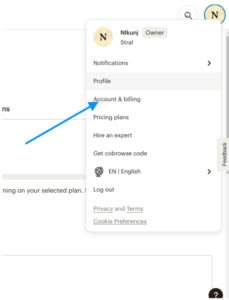
- Login to your mailchimp account and click on top right profile menu and click “Account & billing”, as shown below.
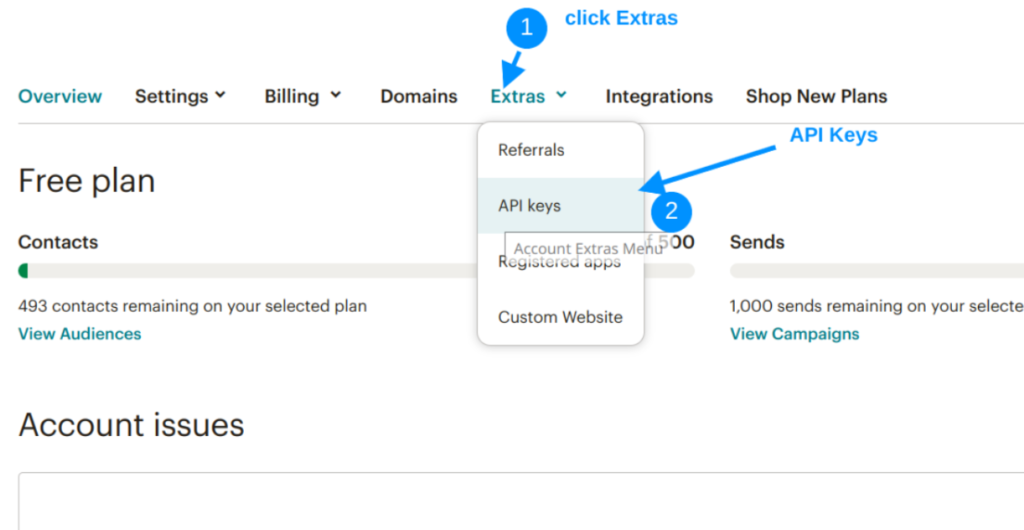
- Click on “Extra” –> then “API Keys”
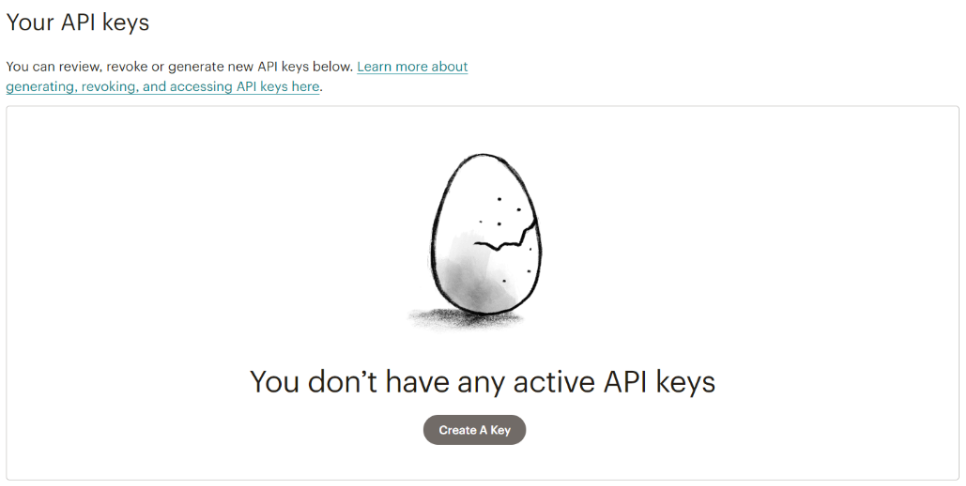
- Click on “Create A Key” button
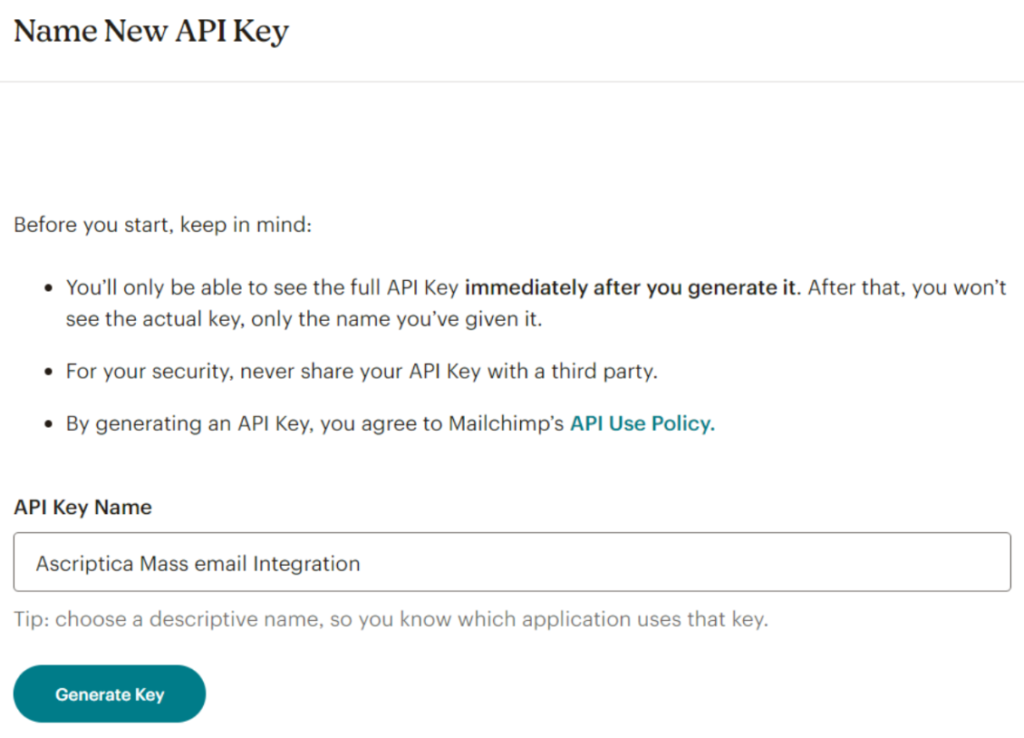
- Provide a name and click “Generate”
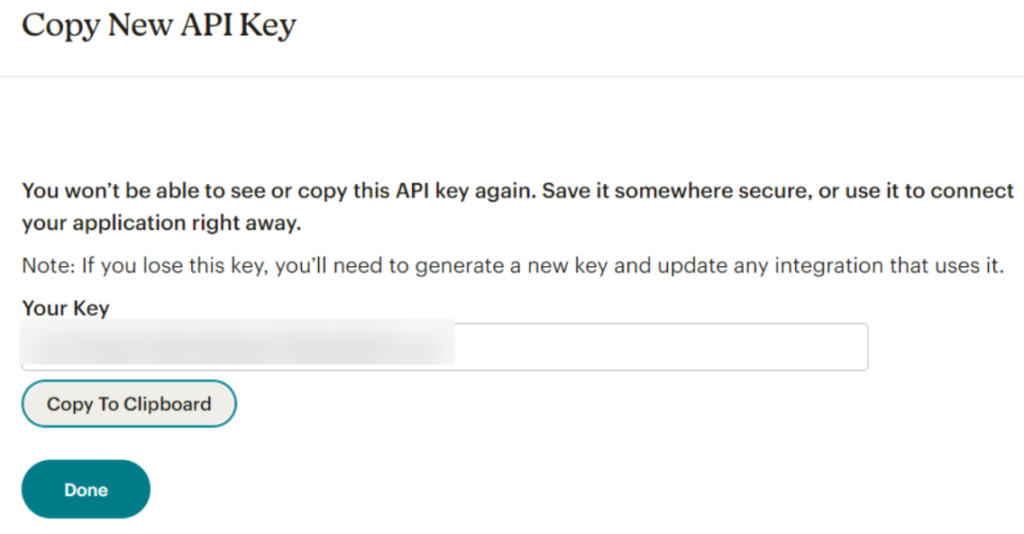
- Copy generated key and store in a safe place as we will need to use in Ascriptica.
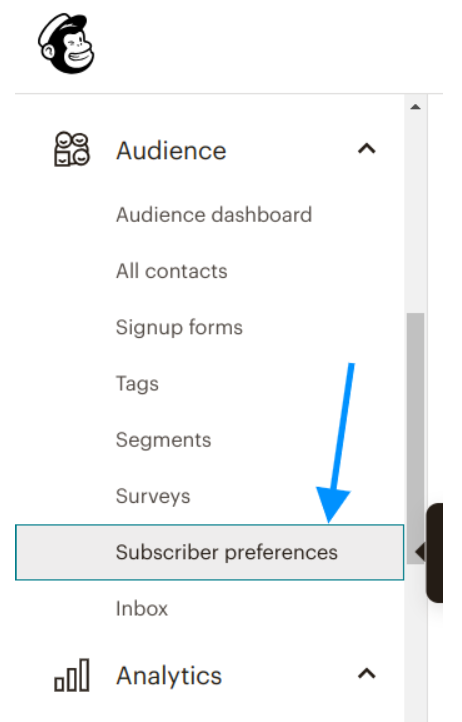
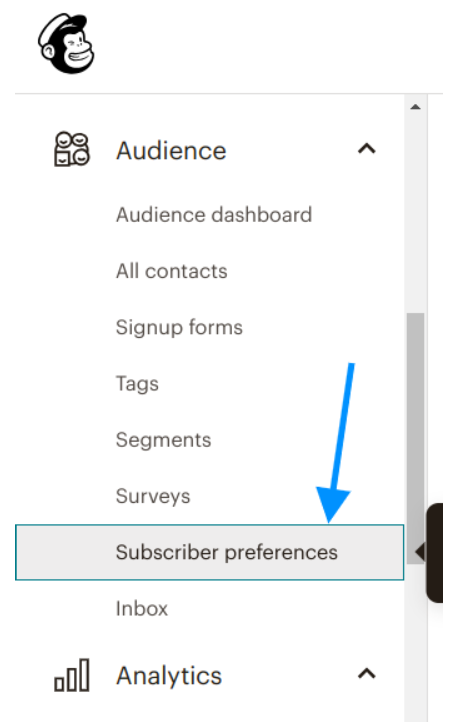
- On left menu bar expand “Audience Menu” and click on “Subscriber preference”
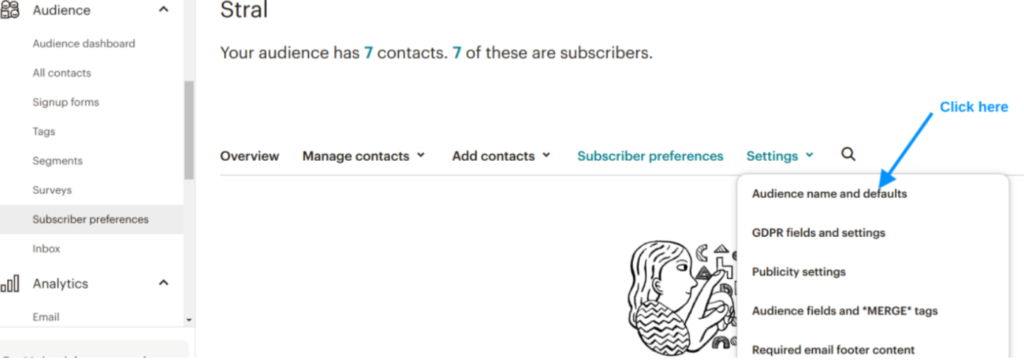
- On subscriber Preference page, click on settings menu –> Audience name and defaults.
- Copy the audience ID below:
Sometimes Mailchimp provides the user the ability to subscribe or unsubscribe from your notifications. The following steps are necessary for MailChimp to let us know when that has happened so we can keep mailchimp and Ascriptica in sync.
- On left menu bar expand “Audience Menu” and click on “Subscriber preference”
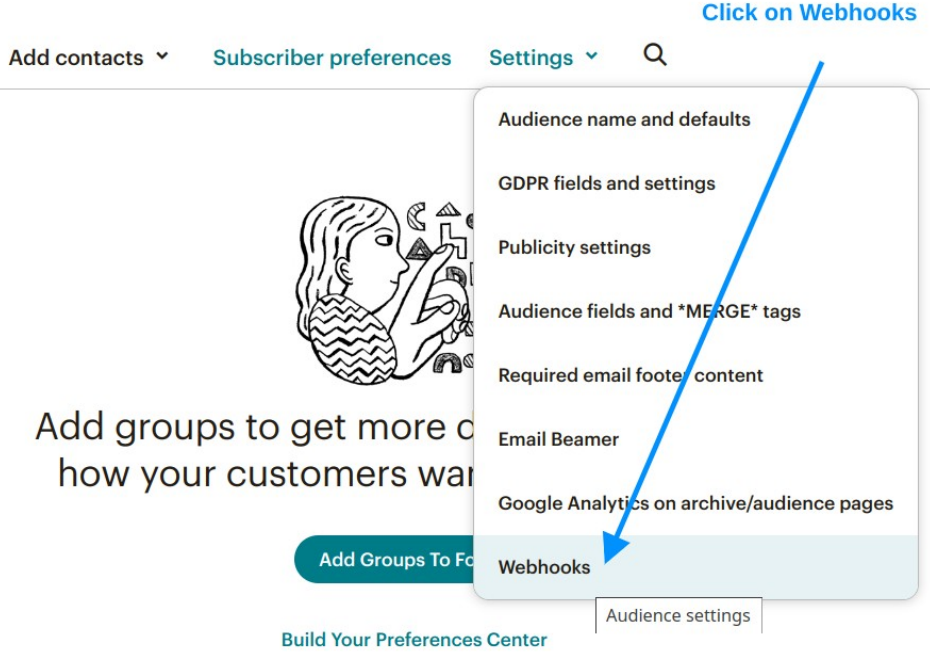
- On settings menu click on “Webhooks” sub menu
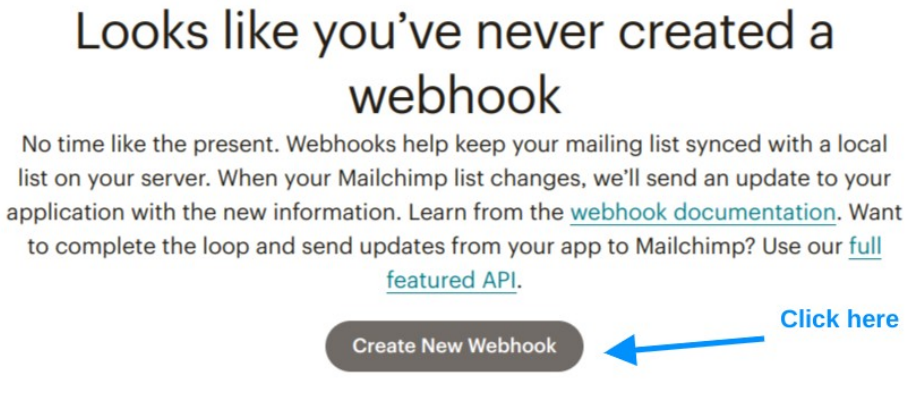
- Click on Create New Webhook
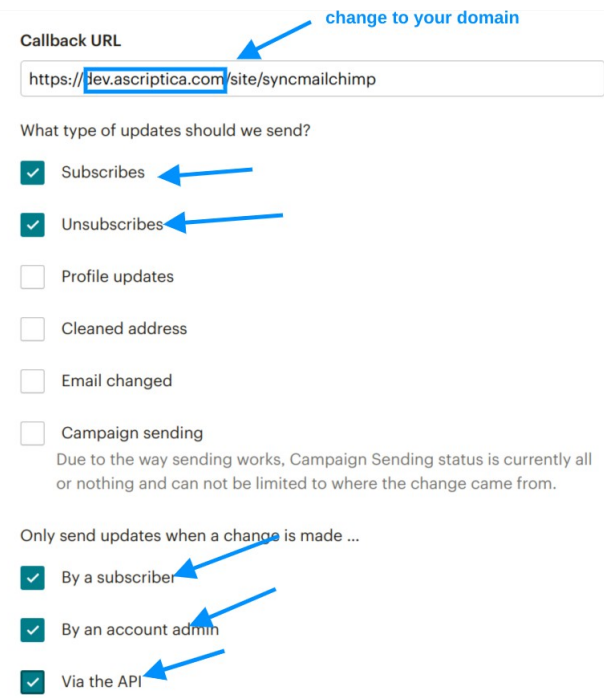
- Set values like below and “Save”
- Navigate to Tools then Settings
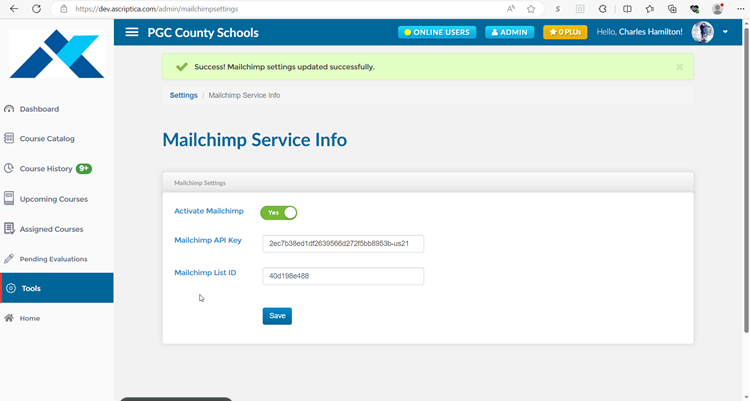
- Click on mailchimp settings
- Enable mailchimp
- Provide the API key and audience ID from previous steps and click on save
- Navigate to Tools then Event scheduler
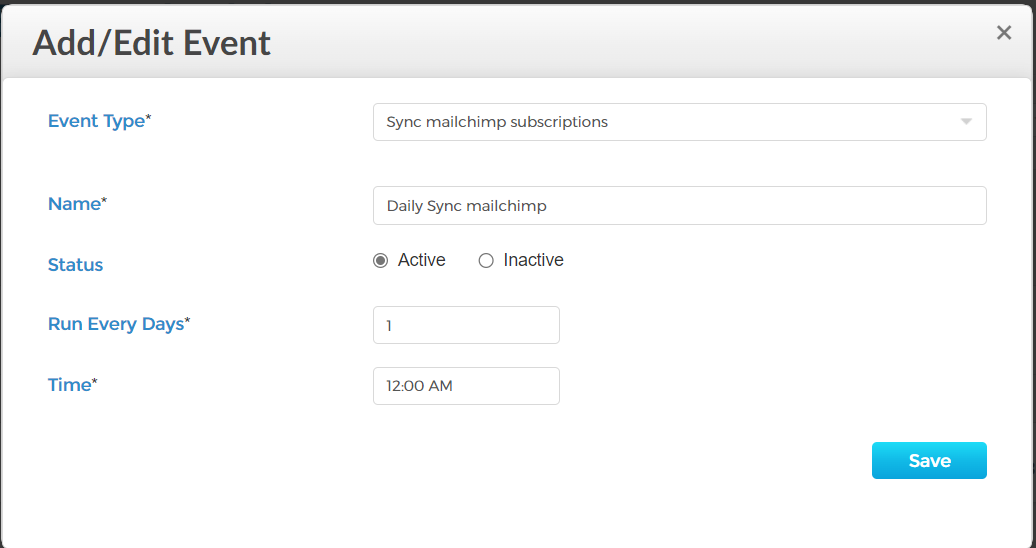
- Create a new event schedule of type “Sync mailchimp subscriptions”
- Set how often, the time, and status to active
- Click on save