1. First, log into Ascriptica
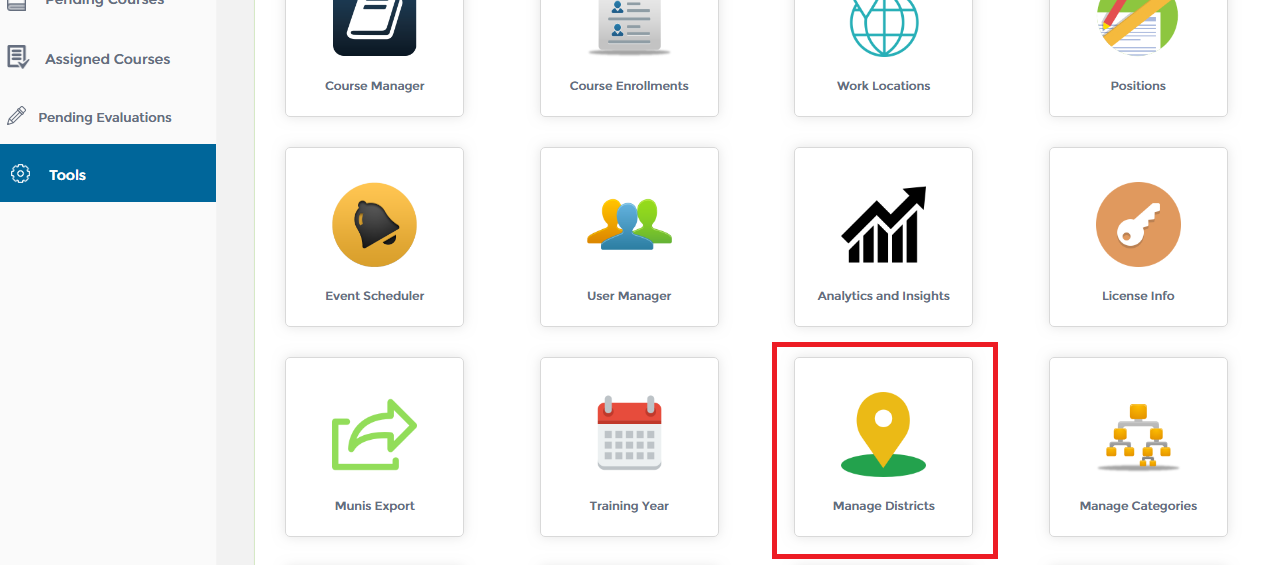
2. Click on ‘Tools’ from the menu on the left.
3. Click on ‘Manage Districts’ as shown below to open the module.
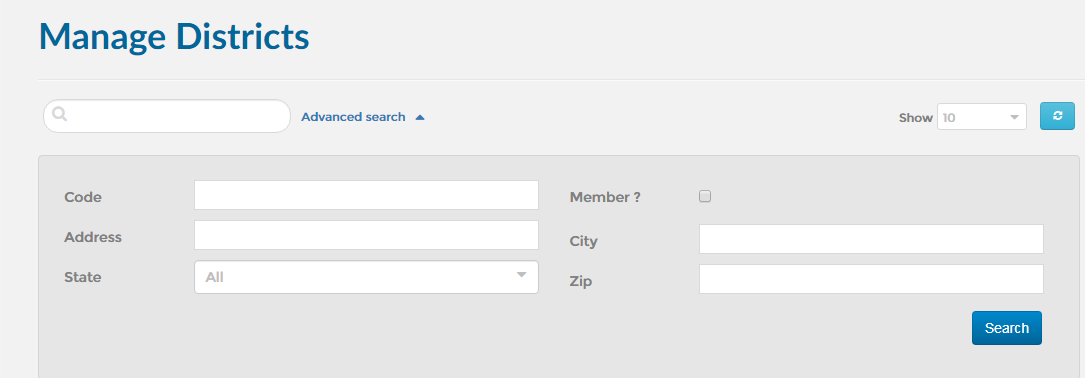
4. You may also search using one or a combination of the fields listed below:
1. First, open the ‘Manage Districts’ module. Click here to find out how to open the ‘Manage Districts’ module.
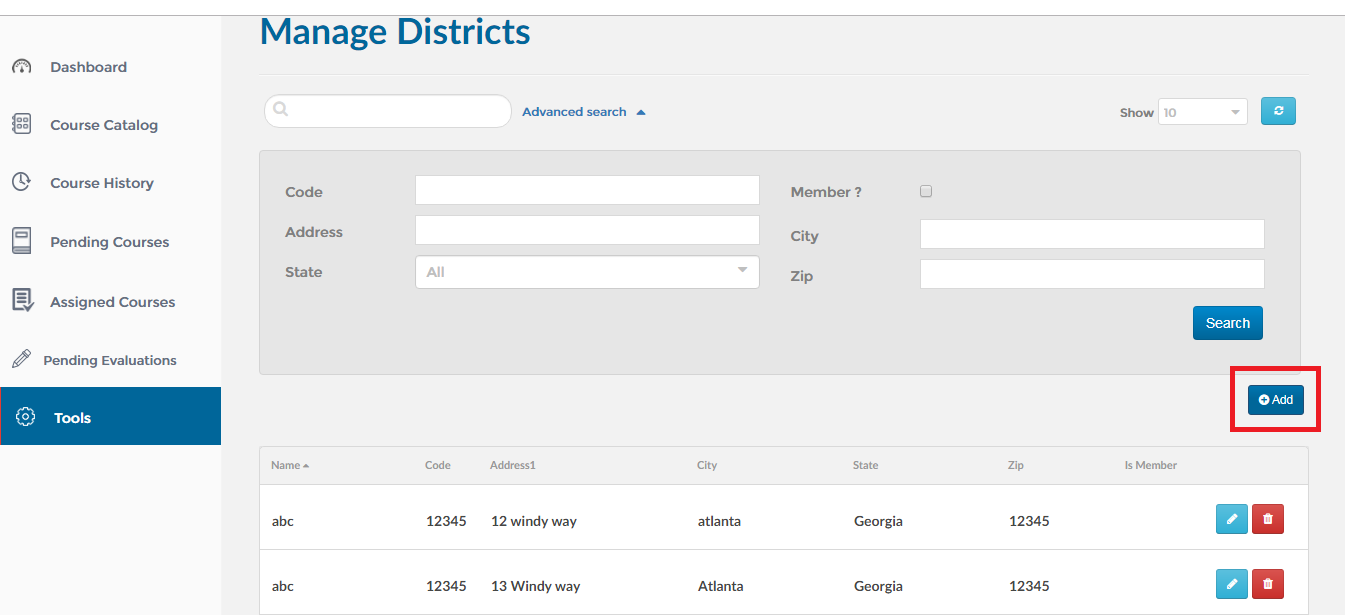
2. Click on the ‘Add’ button as shown below.
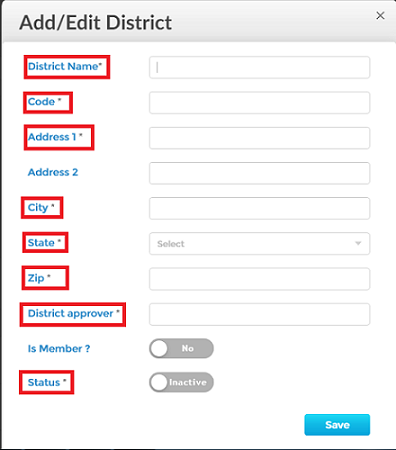
3. This will take you to the ‘Add/Edit District’ wizard. All the required fields are marked with an asterisk as shown below.
Note:
Is Member Flag: Please set the Is Member flag to yes to indicate that this district/area is a member of your organization. All work locations associated with this district will be considered a member. Users associated with the work locations tied to a member district will be charged the member cost.
District Approver: Please indicate who will approve registration requests from this district. They will receive an email whenever someone registers from work locations tied to this district. They will be required to approve/deny the requests (the request can also be overriden if configured).
1. First, open the ‘Manage Districts’ module. Click here to find out how to open the ‘Manage Districts’ module.
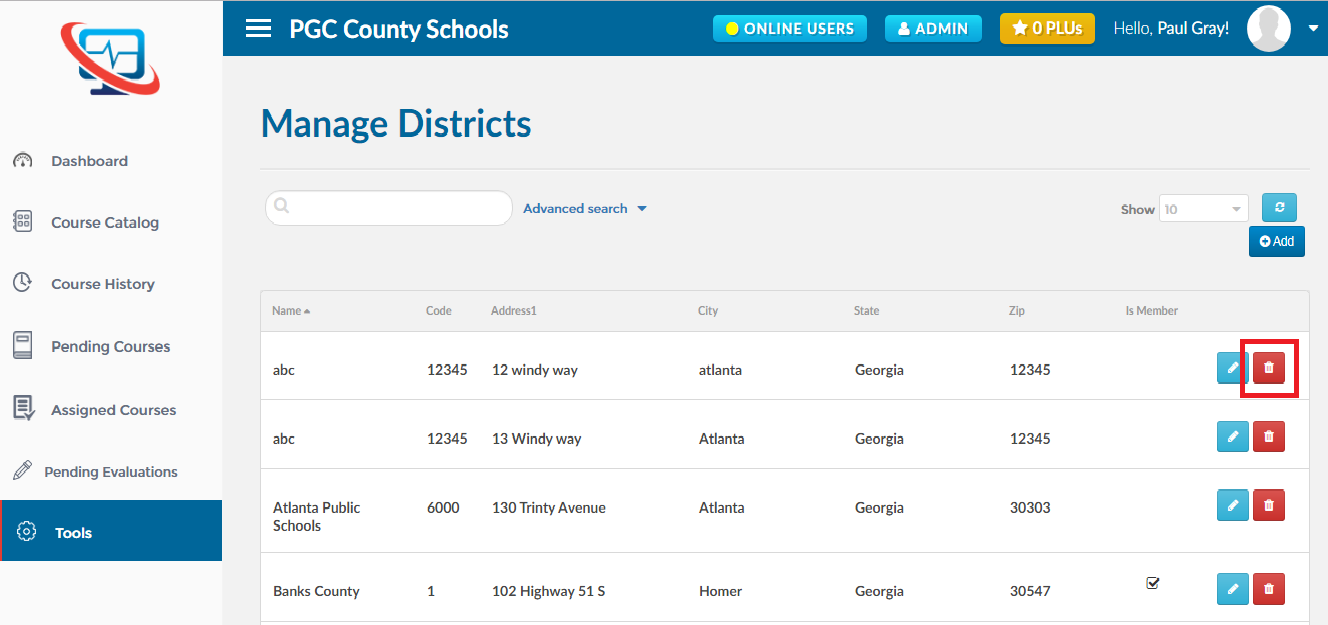
2. Find out the district record you want to delete and click on the ‘Delete’ icon as shown below.