
- First, log into Ascriptica
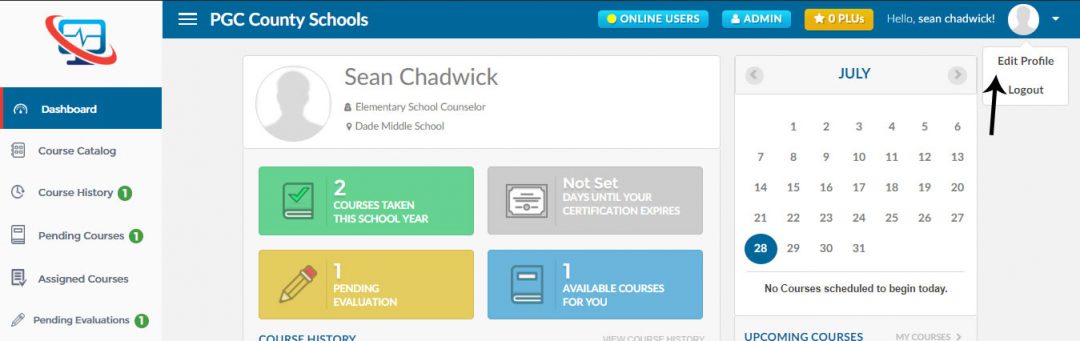
- Click the arrow in the top right hand corner of the web application as shown below.
- Select Edit Profile
- From here you can make changes to your profile including name, email address, work location and so on.
- First, log into Ascriptica
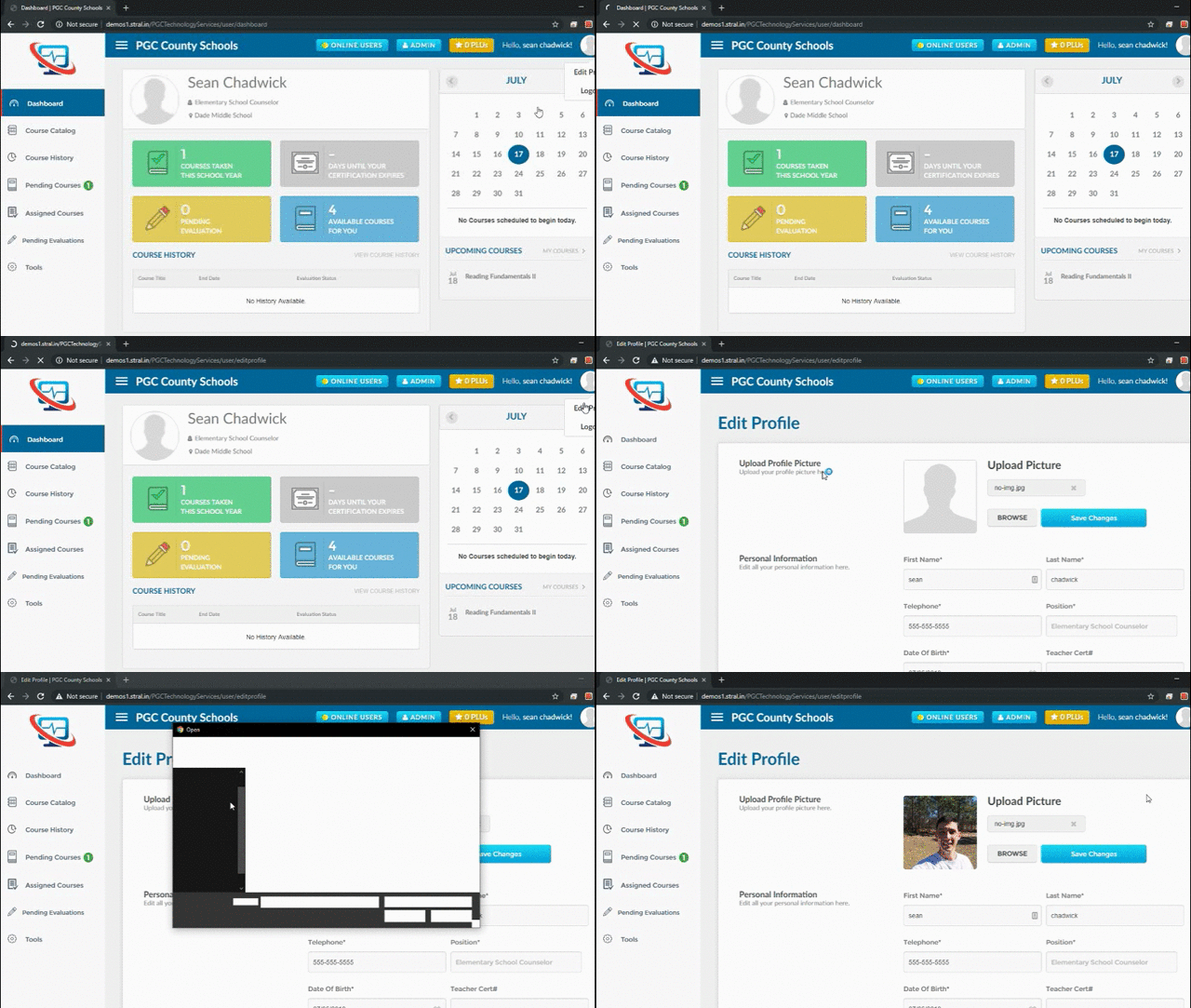
- Click the arrow in the top right hand corner of the web application as shown below.
- Select Edit Profile.
- Click browse to find and select the profile picture you would like to use.
- Click save changes
- First, log into Ascriptica.
- Click the arrow in the top right hand corner.
- Select Edit Profile.
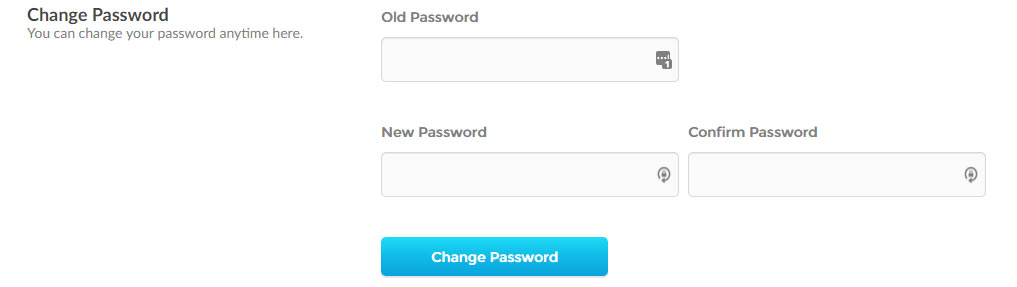
- Scroll down to your password and update appropriately .
- Open Ascriptica.
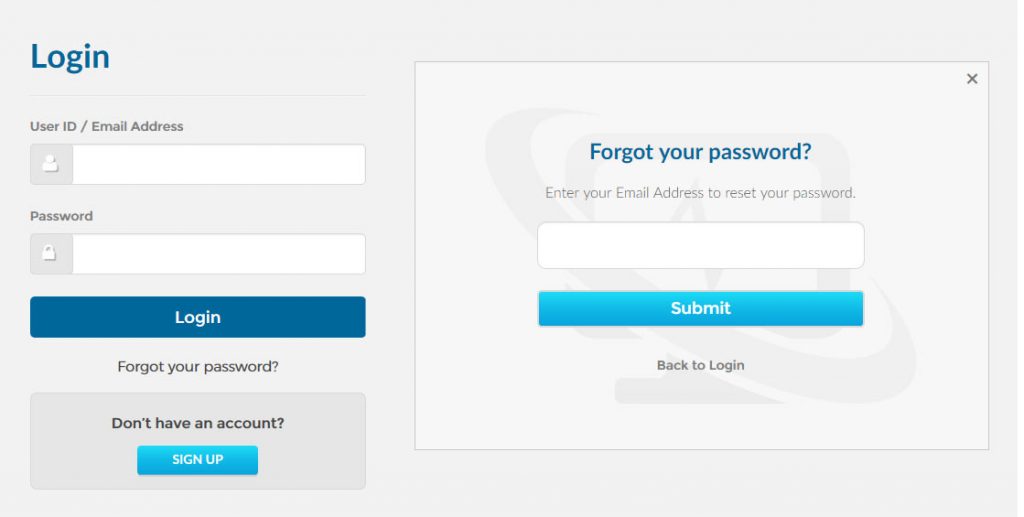
- Click the forgot password link as shown below
- Provide your primary email address and click submit.
- You will receive an email with instructions on how to reset your password
- First, log into Ascriptica
- Select Edit Profile.
- Scroll down to the change email section of your profile.
- Change your primary or secondary email and click save to complete the changes.
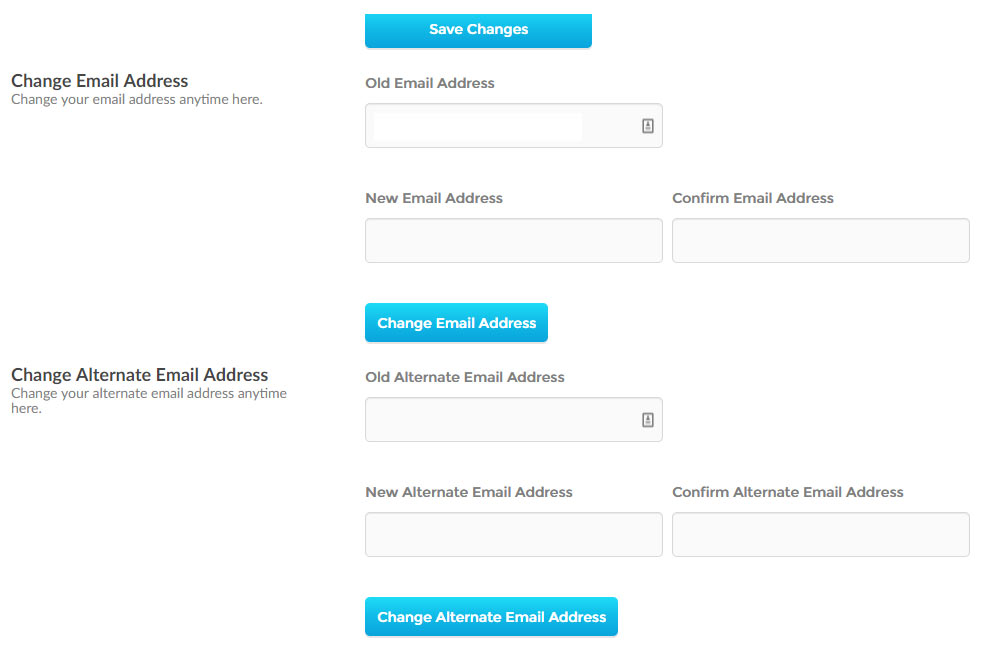
- First, log into Ascriptica
- Select Edit Profile.
- Scroll down to the personal information section.
- Edit your position and work location and address accordingly.
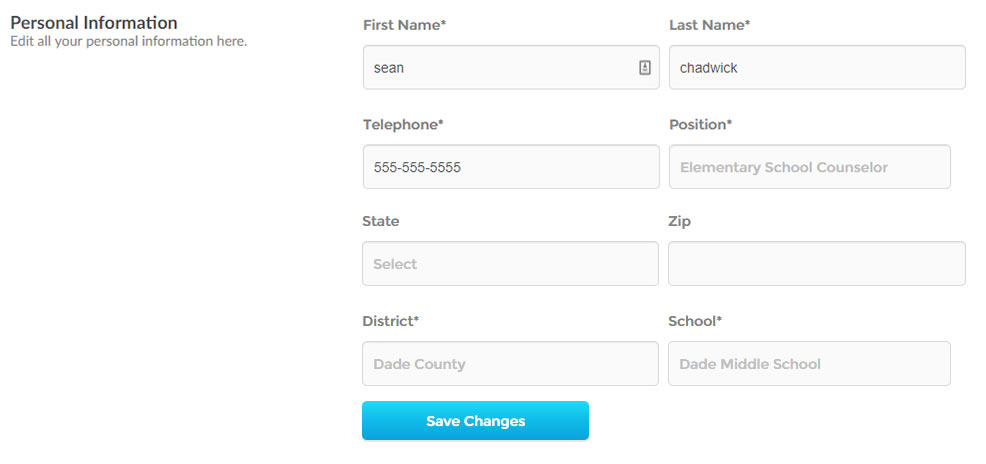
- First, log into Ascriptica.
- Click on Edit Profile.
- Scroll down to the personal information section.
- Ensure that you’ve set the date your certificate will expire./li>
- Click on the bell to opt in to the notifications your organization has configured. Your organization may set multiple reminder schedules and this allows you to opt in for those reminders.
- Once you click the bell to opt in you will begin getting those reminders.
