
Sample use case:
- I would like to give a specific group of users access to the enrollment tool only. All the other admin tools should not be accessible.
Instructions:
- First, log into Ascriptica
- Click on tools
- Expand the tools sub section and click on Roles and Permission
- Click Add to begin the process
- Provide the name of the role and a description that help users understand what the role will have access to.
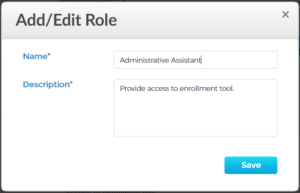
- Click save
- Select the areas of the system the role should have access to
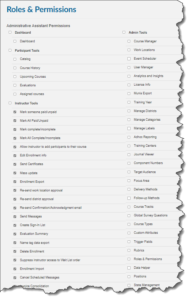
- Click Submit.
Sample use case:
- I created a new role; however, we found out that we provided too much access and I need to restrict access even further.
Instructions:
- First, log into Ascriptica
- Click on tools
- Expand the tools sub section and click on Roles and Permission
- Search for the custom role
- Click on the gear icon to change the access. Toggle off the checkbox to remove and toggle on the checkbox to add new permissions.

- Note: Click the pencil icon to change the name and description
- Click submit to save your changes