
1. First, log into Ascriptica
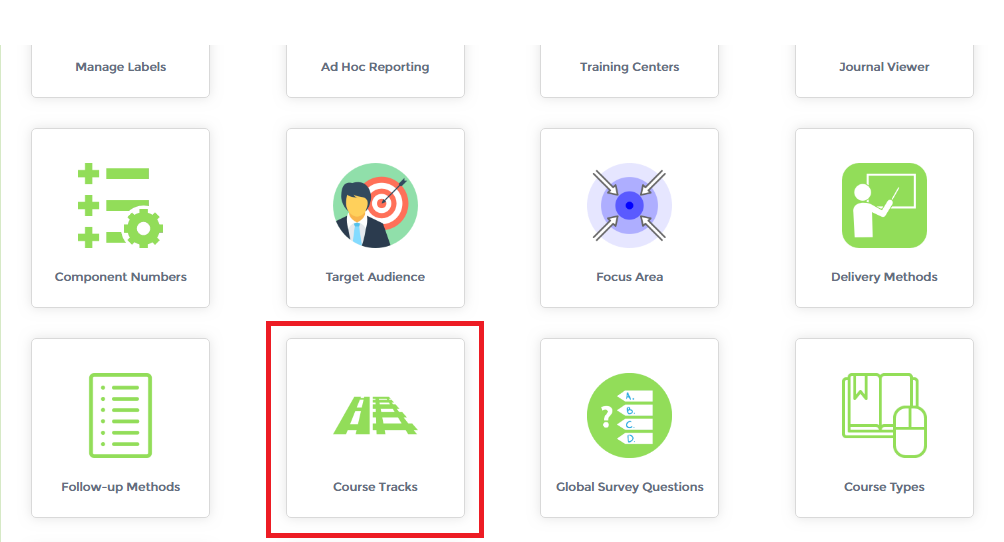
2. Click on ‘Tools’ from the menu on the left.
3. Click on ‘Course Tracks’ as shown below to open the module.
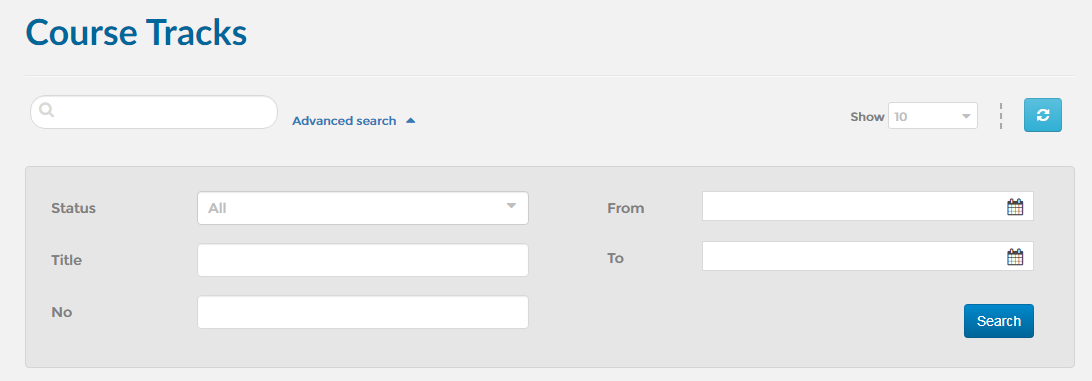
4. You may also search using one or a combination of the fields listed below:
1. First, open the ‘Course Tracks’ module. Click here to find out how to open the ‘Course Tracks’ module.
2. Click on the ‘NEW’ button as shown below.
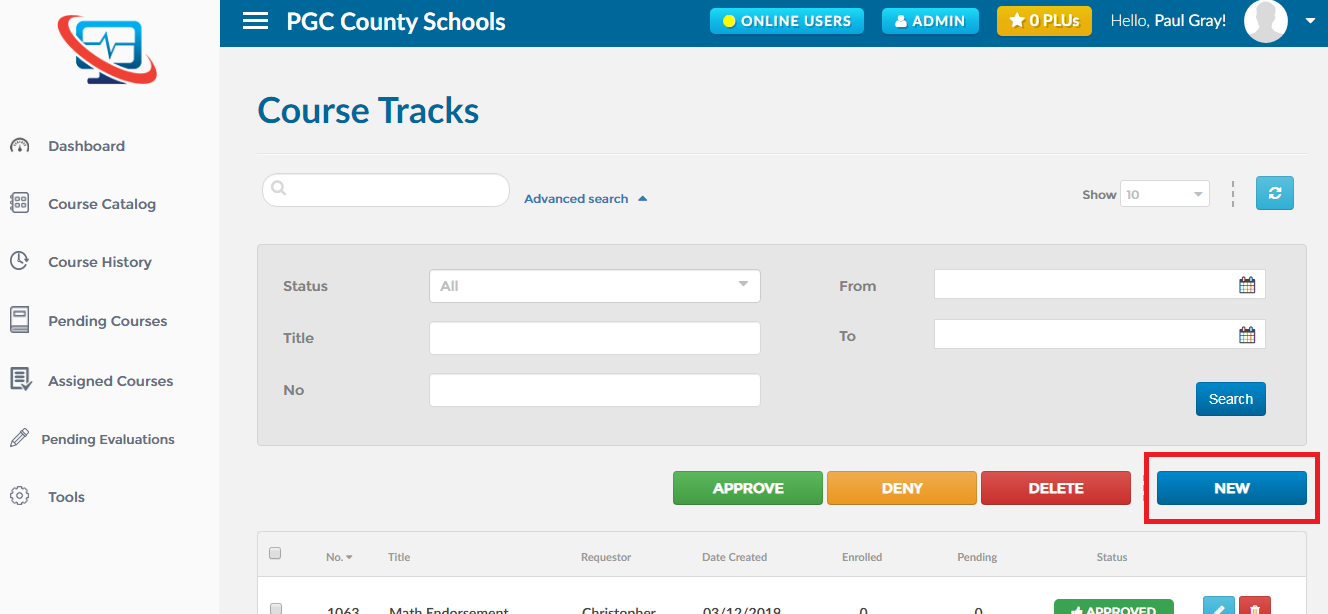
3. This will take you to the course track wizard which will guide you through the steps of creating a course track
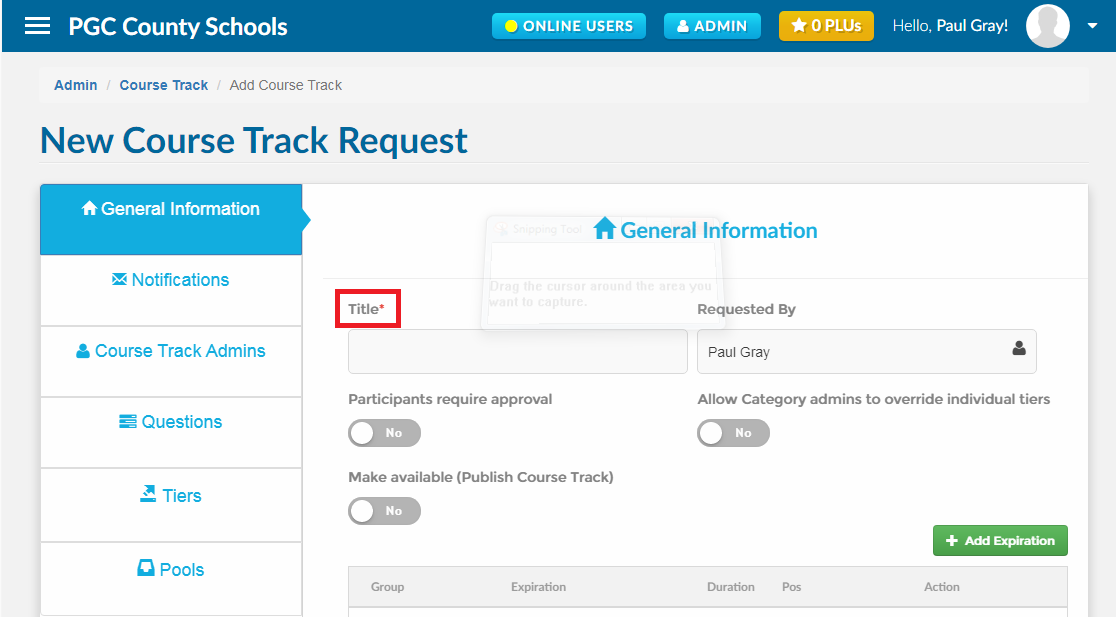
4. All required fields are marked with an asterisk as shown below
1. First, open the ‘Course Tracks’ module. Click here to find out how to open the ‘Course Tracks’ module.
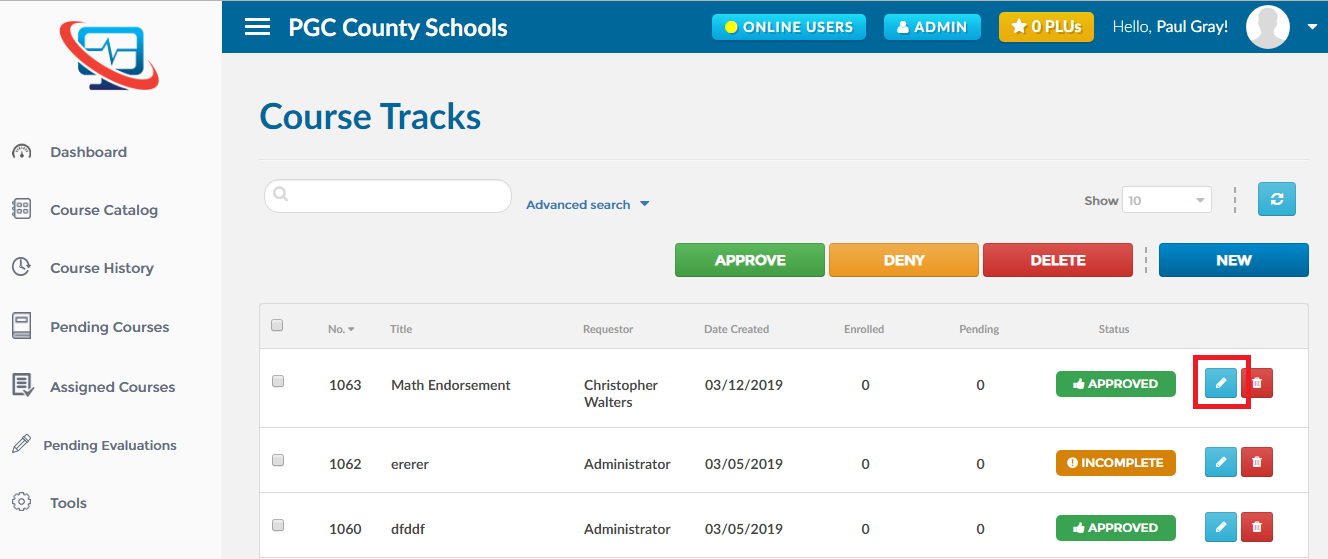
2. Find out the ‘Course Track’ you want to edit and click on the ‘Edit’ icon as shown below.
1. First, open the ‘Course Tracks’ module. Click here to find out how to open the ‘Course Tracks’ module.
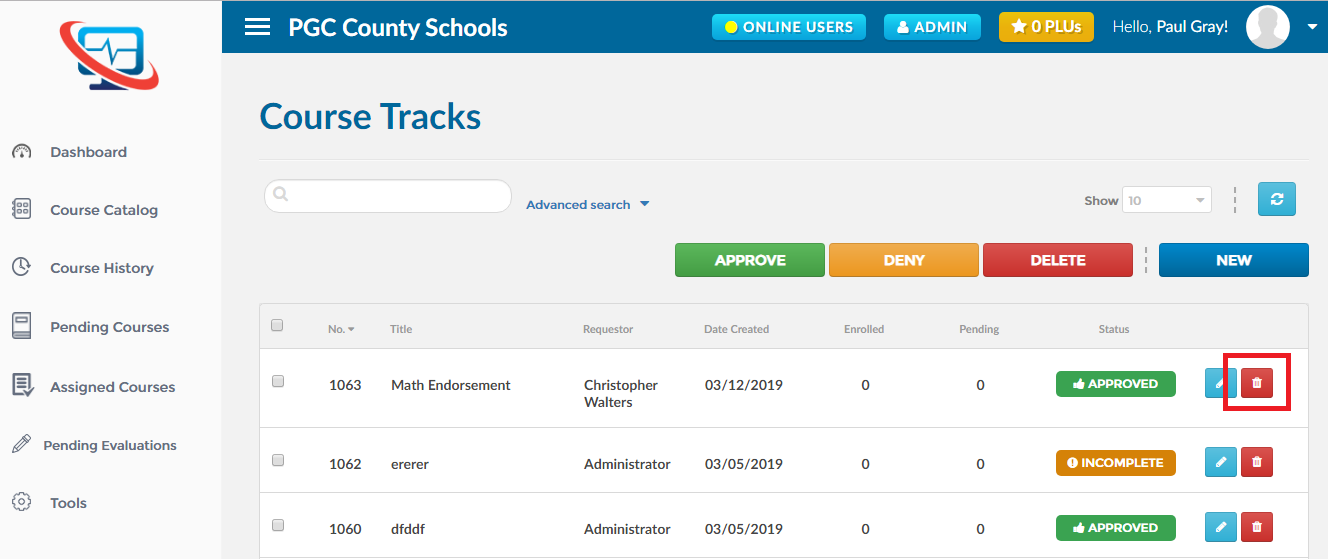
2. Find out the ‘Course Track’ you want to delete and click on the ‘Delete’ icon as shown below.
1. First, open the ‘Course Tracks’ module. Click here to find out how to open the ‘Course Tracks’ module.
2. Find out the ‘Course Track’ you want to delete and click on the ‘Delete’ icon as shown below.