
Ascriptica Canvas LMS integration allows you to connect to Canvas LMS to automate the registration of users into associated Canvas LMS courses. The current connection supports the following activities:
- When a participant/registrant registers for a course in Ascriptica they are automatically registered in the associated canvas course. This saves the end user from having to do multiple registrations.
- When a participant/registrant withdraws from a course in Ascriptica they are automatically withdrawn from the associated canvas course. This saves the end user from having to remember to withdraw in both places.
In order to connect Ascriptica to Canvas LMS you will need the following 3 key pieces of information:
- Your Canvas web service URL
- Your Canvas web service token
- Your Canvas Root ID
Once you have the information above, you will connect Ascriptica in the final step.
How to get the web service URL
The web service URL will be a combination of your canvas URL + /api/v1
For example if your canvas website is “https://pgccountyschools.instructure.com/”
You web service URL would be “https://pgccountyschools.instructure.com/api/v1“
Make note of this URL because you will need it later
How to retrieve your Canvas web service token
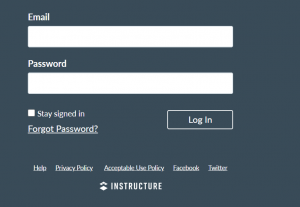
- Login to your Canvas site using an account with admin rights/privilege
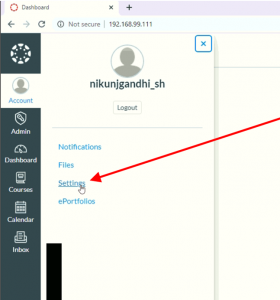
- Click Account from the Navigation, then click settings on the sub menu
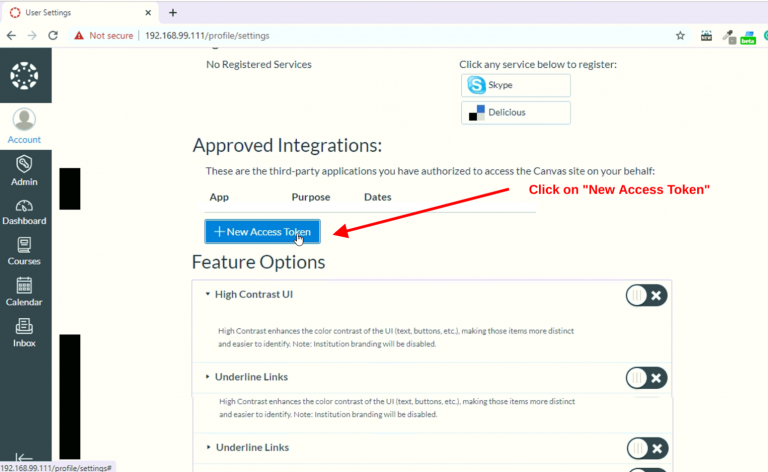
- Scroll down to “Approved Integrations” and click on “New Access Token”
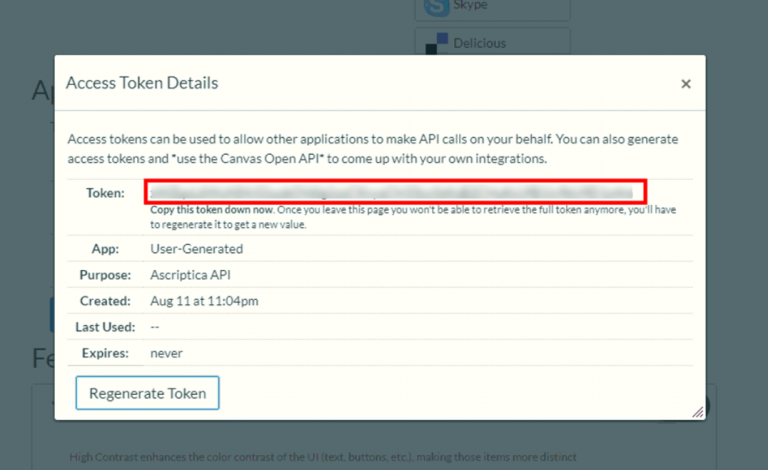
- On the new token pop-up, enter purpose as “Ascriptica API”, leave Expires blank and then Click “Generate Token”
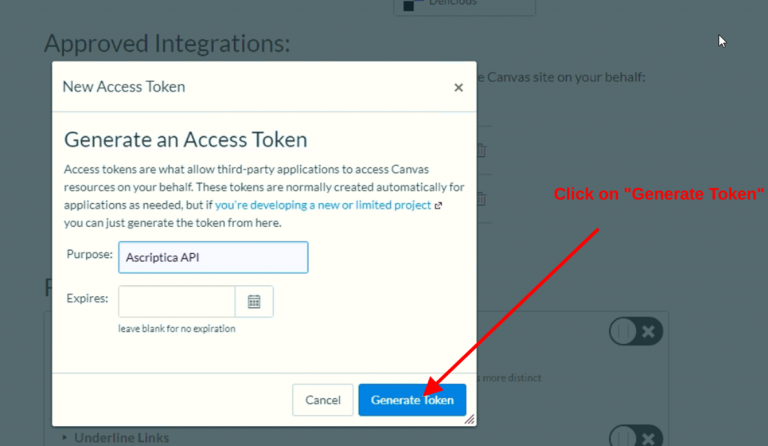
- Copy the token generated by the system and keep it in a safe place as you will need it in the final step to configure AscripticaTM
How to retrieve your Canvas root ID
- Login to your Canvas site using an account with admin rights/privilege
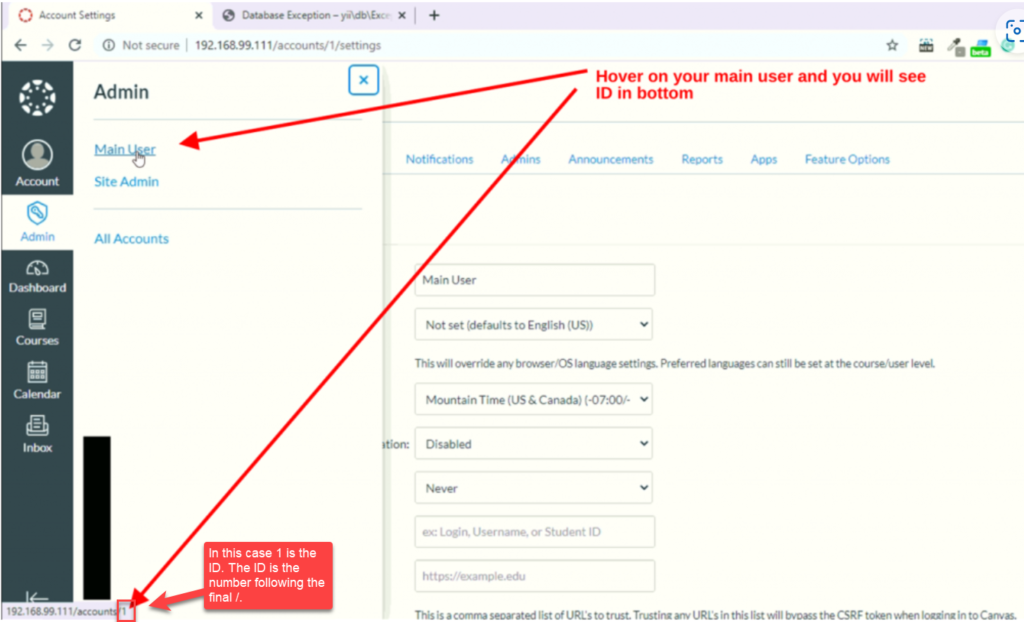
- Click Admin from the main Navigation on the left, then hover over the main user hyperlink
- The root ID will be displayed in the lower left hand status bar as shown below:
Connect Ascriptica to Canvas LMS
- Login to Ascriptica as an admin
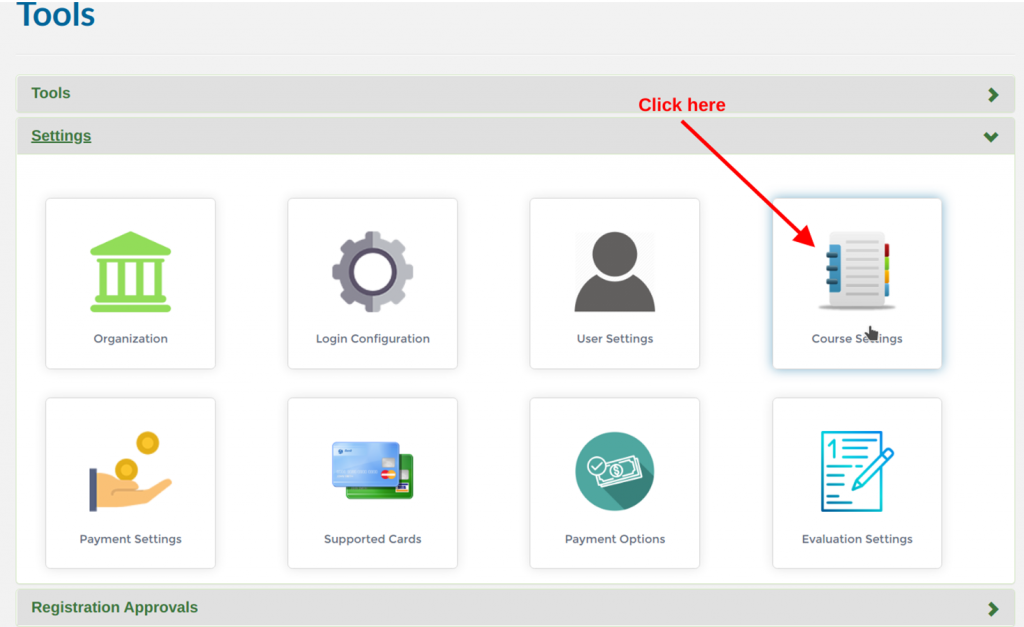
- Navigate to Tools then Settings
- Click on Course Settings
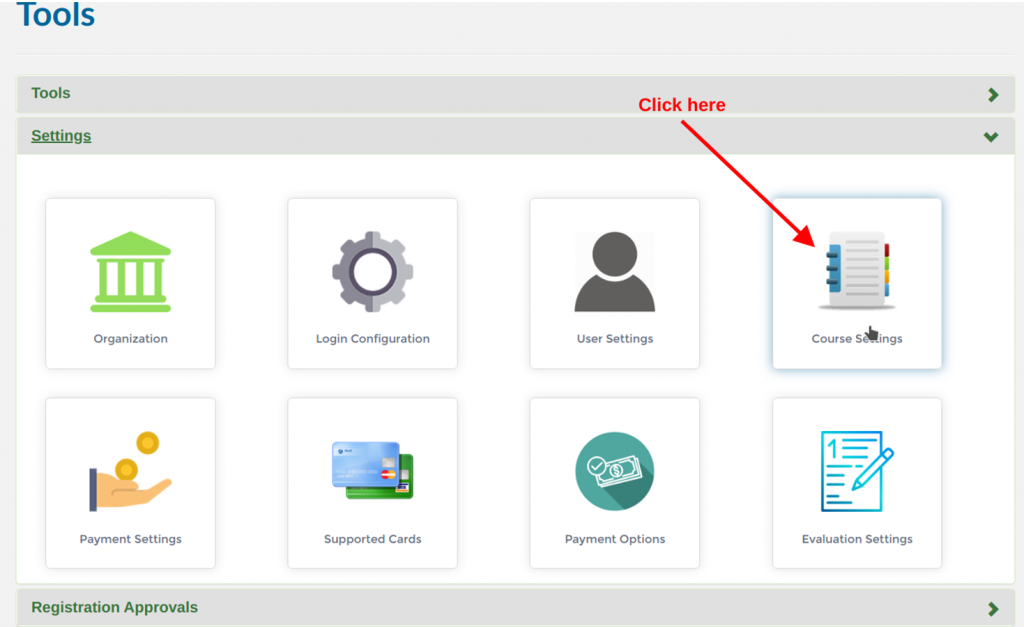
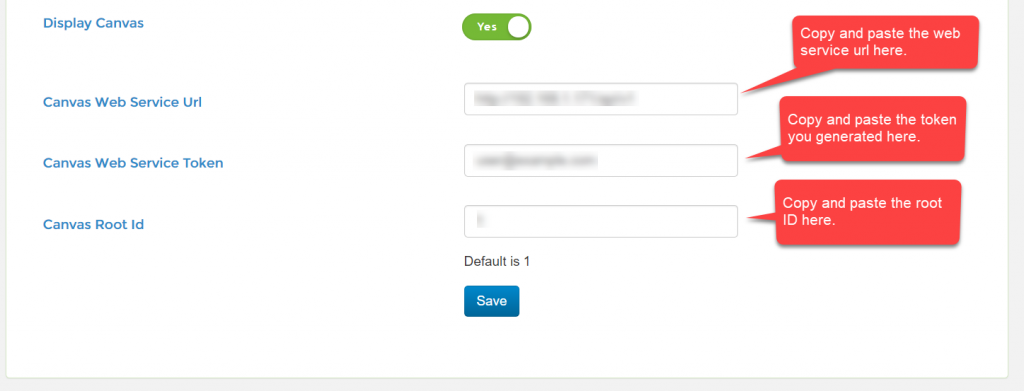
- Toggle on Display Canvas
- Copy and paste the requested information in the fields below with the information you stored in a safe place above
- Click save
In order to associate an AscripticaTM course with a Canvas LMS course all you need is the Canvas LMS Course ID. See below for how to find it and associate it with an Ascriptica course. These instructions assume you have already configured Ascriptica to communicate with Canvas LMS. If you have not done so yet, please see click here.
In addition, Ascriptica allows you to mark registrants complete when a course is concluded in Canvas.
How to get the canvas LMS Course ID
- Login to your Canvas site using an account with admin rights/privilege
- Navigate to the course’s home page
- The course number can be found at the end of the URL in the browser as shown below
How to associate your ascriptica course with the canvas course
- Login to Ascriptica with admin rights/privilege
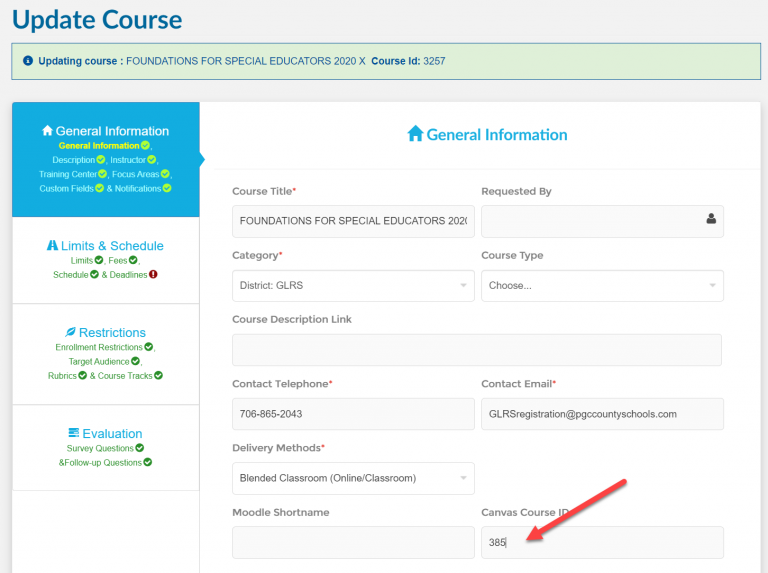
- Go to course manager and open the course you want to associate
- On the general page, scroll down and input the canvas ID you got from the URL above
Mark registrant complete when the course is concluded in Canvas.
- Open the event scheduler and create a new event “Canvas Concluded Monitor.”
- Provide a name for example “Mark registrants complete”
- Set status to active
- Tell Ascriptica how often to run for example ever day
- Tell Ascriptica what time to run. For example 2:00AM.
- Tell Ascriptica if you want to look at previous training years. IF set to 0, it will only look at current training year. If set to 1, it will consider current year and the previous training year.