1. First, log into Ascriptica
2. Click on ‘Tools’ from the menu on the left.
3. Click Course Manager as shown below to open the module.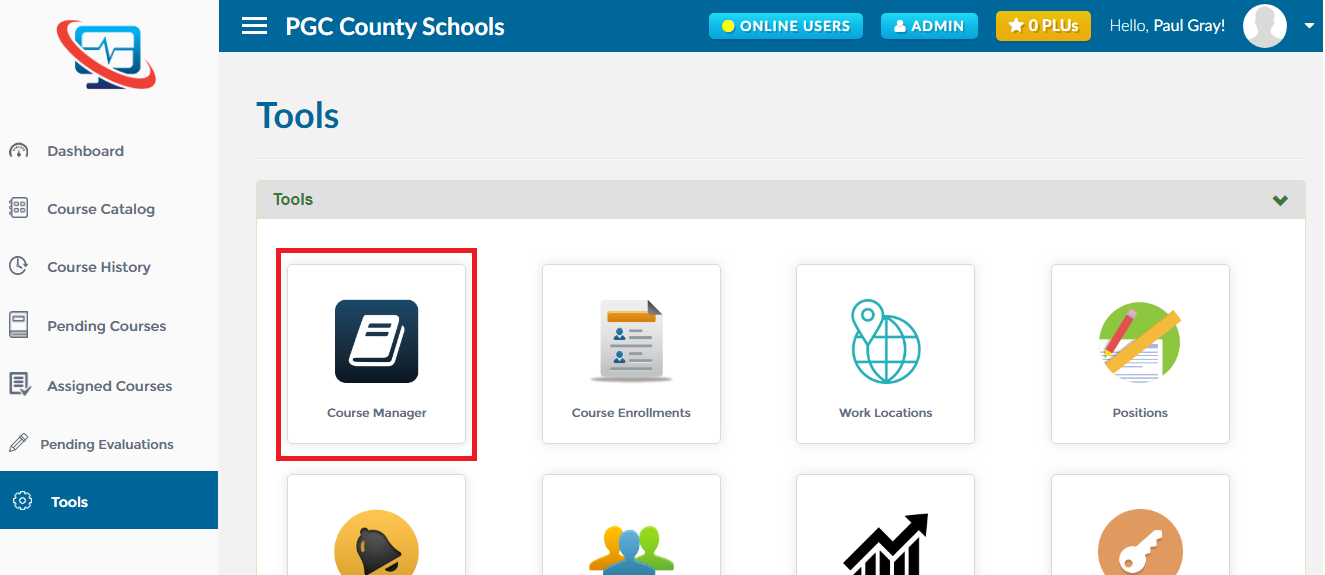
1. First, open the course manager. Click here to find out how to open the course manager.
2. By default, all courses with a start date of the current date or later is displayed.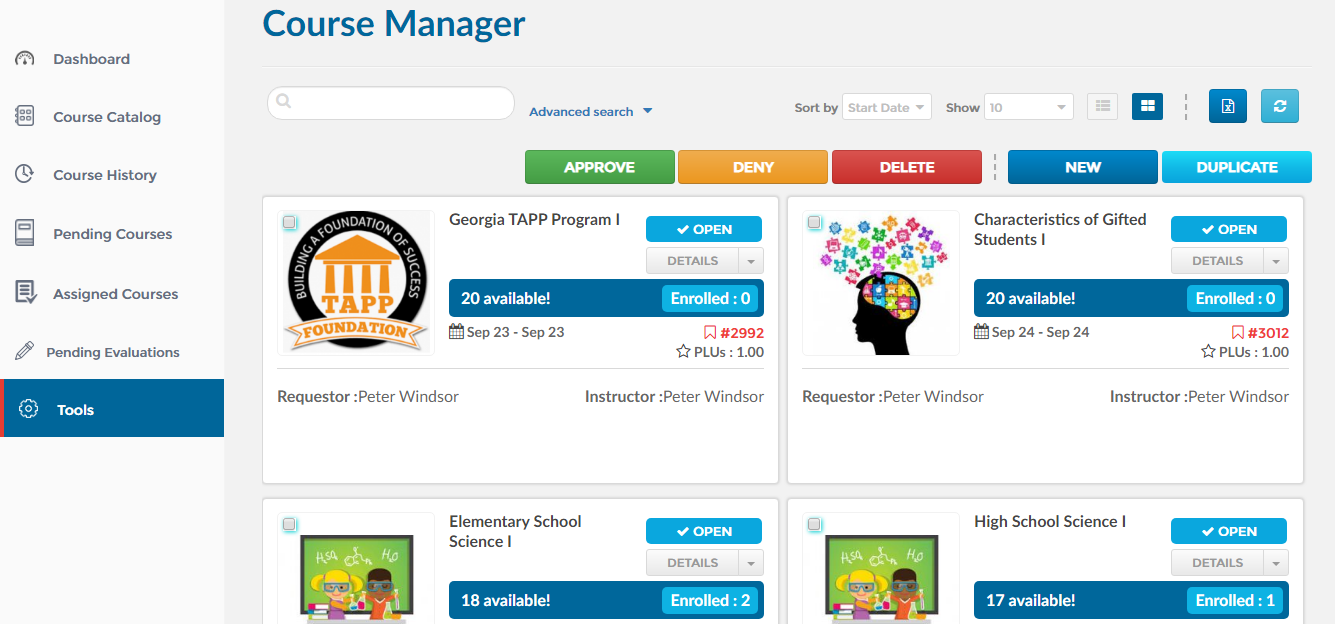
3. You may search using one or a combination of the fields listed below:
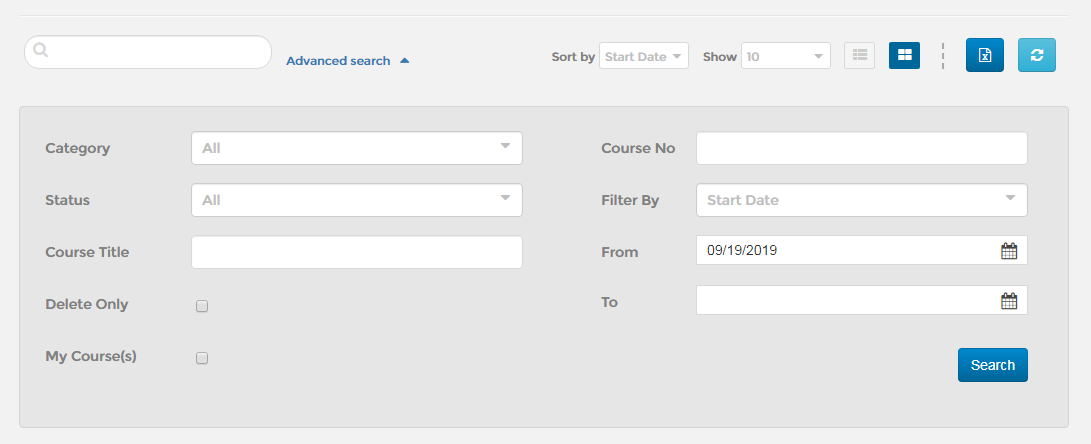
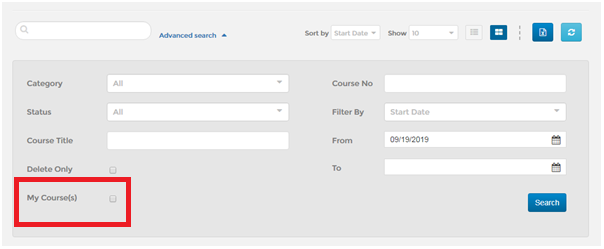
1. First, open the ‘course manager’. Click here to find out how to open the course manager.
2. Click on ‘My Courses’ checkbox as shown below.
1. Click here to find out how to find the course or courses you are interested in approving or deleting.
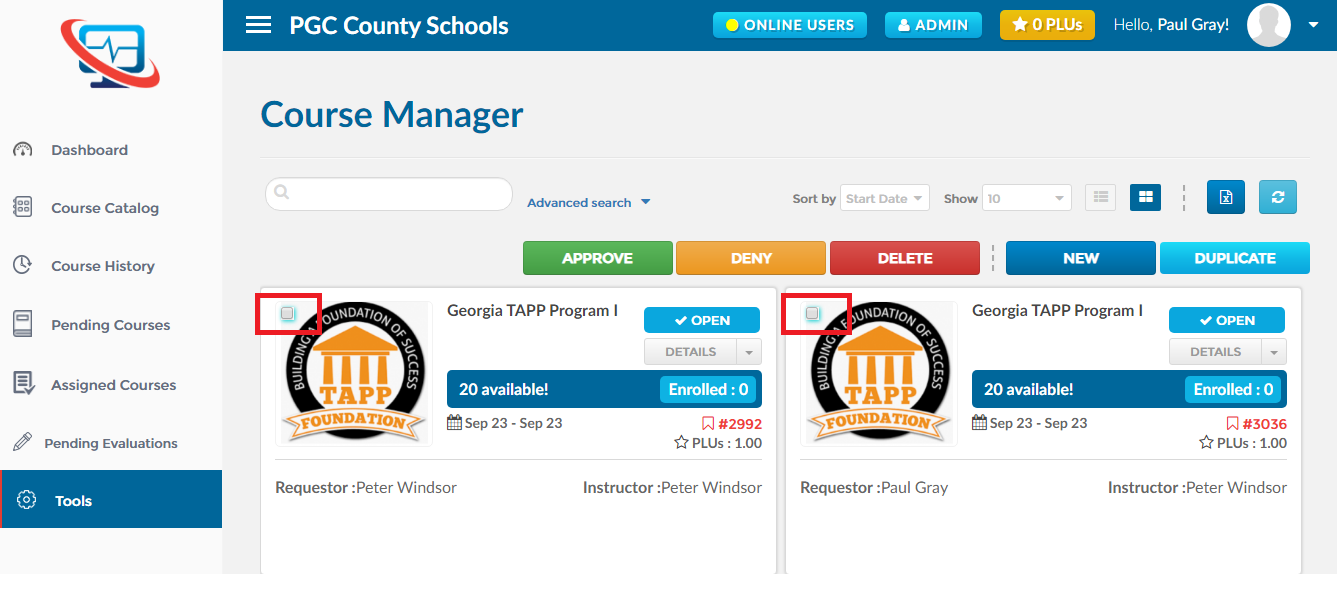
2. Find the course or courses you are interested in taking action on.
3. Select one or more of the courses by clicking on the checkmark in the upper left-hand corner as shown below.
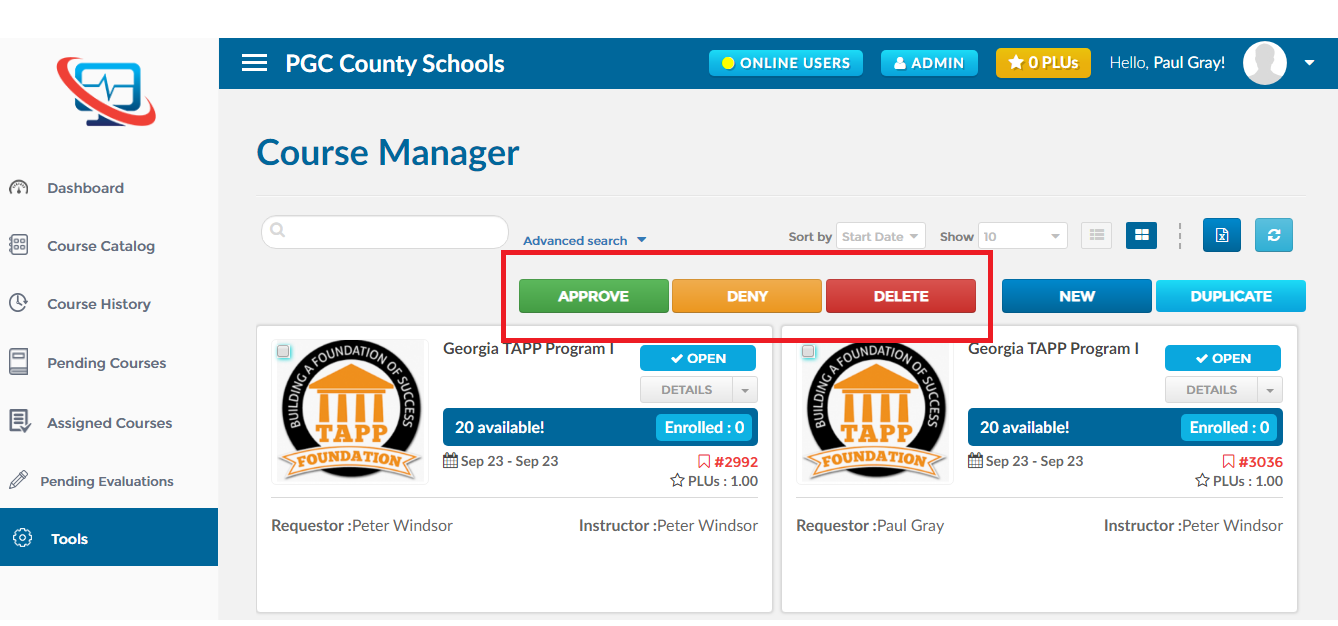
4. Click on the appropriate action button as shown below to approve, deny or delete the course(s).
1. Click here to find out how to find the course you are interested in to make changes.
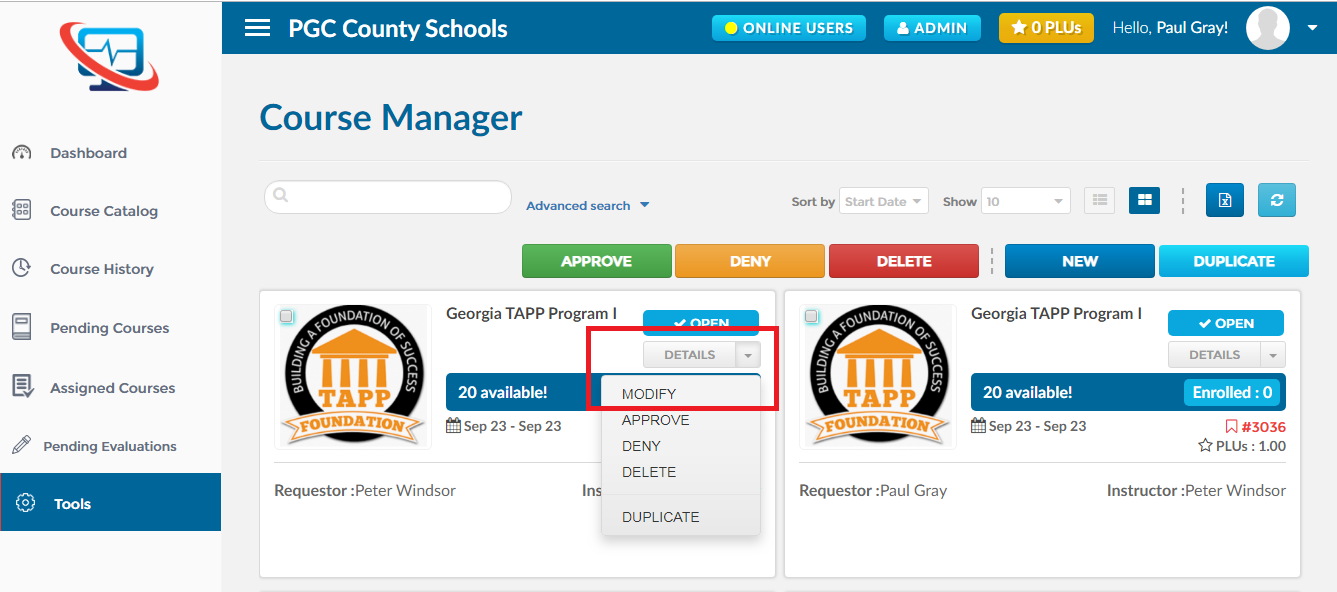
2. Click on ‘Modify’ as shown below, it will take you to the ‘Update Course’ page.
1. First, open the course manager. Click here to find out how to open the course manager.
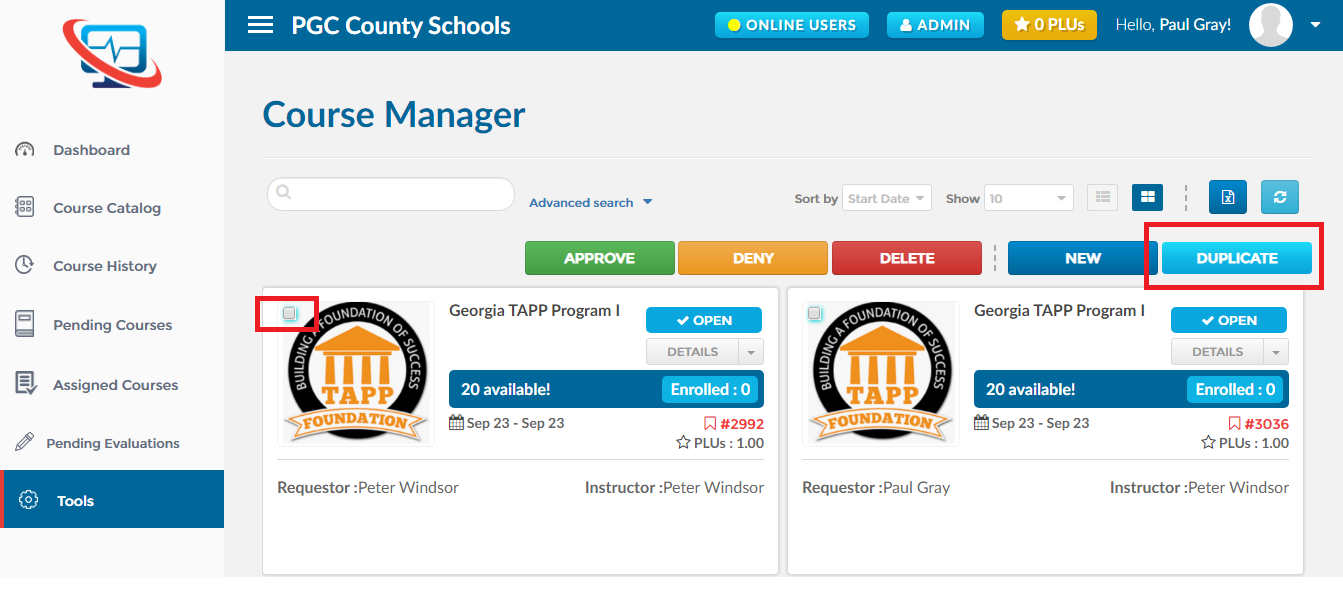
2. Find the course, you are interested in duplicating.
3. Select the course by clicking on the checkmark in the upper left-hand corner and click on the duplicate button as shown below.
1. First, open the course manager. Click here to find out how to open the course manager.
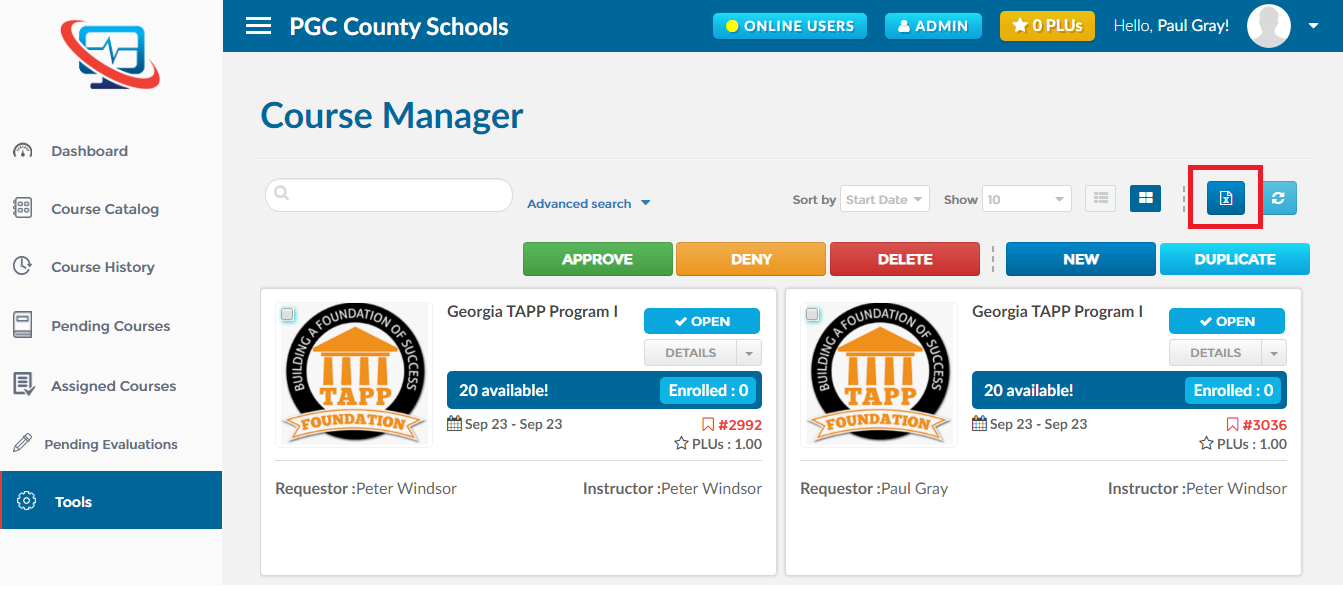
2. Click on the ‘export’ button as shown below.
1. First, open the course manager. Click here to find out how to open the course manager.
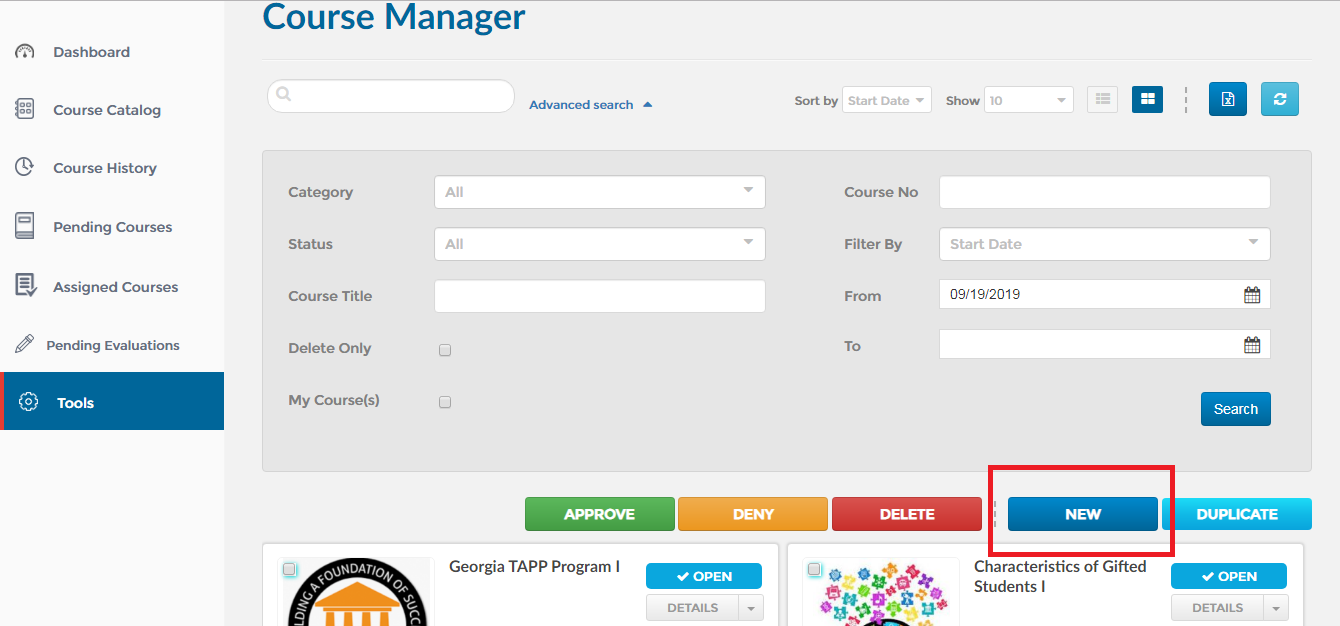
2. Click on the ‘New’ button as shown below.
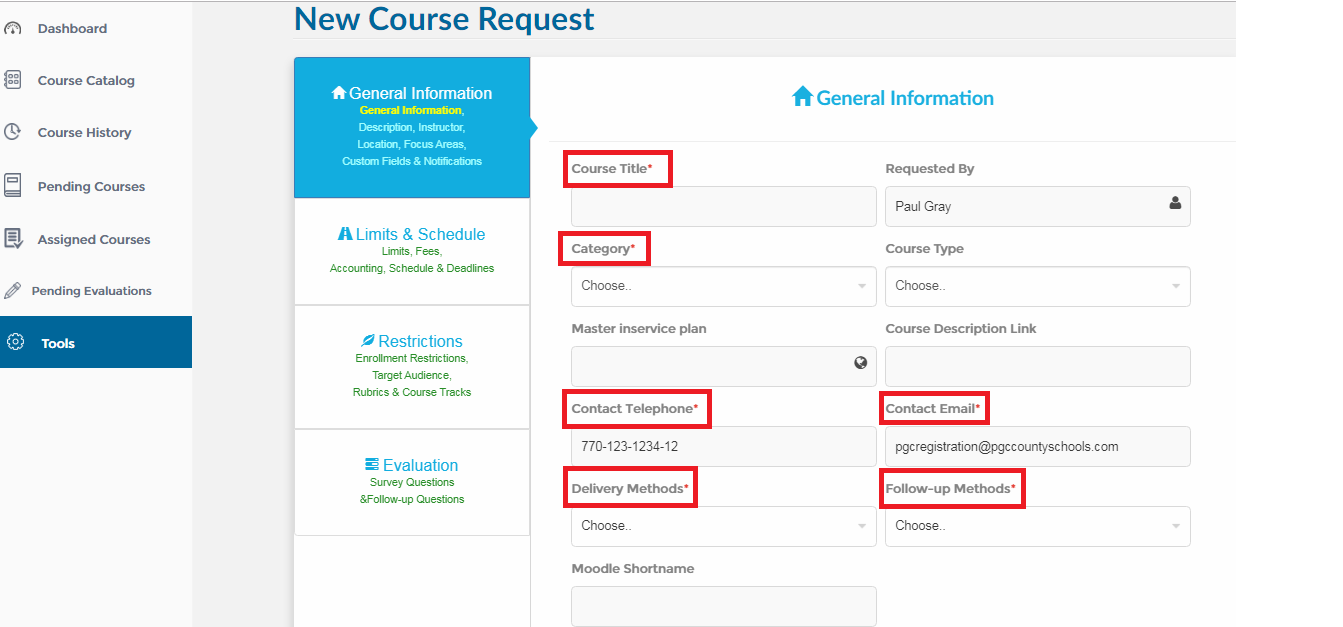
3. This will take you to the course wizard which will guide you through the steps of creating a course
4. All required fields are marked with an asterisk as shown below
1. Click here to find out how to find the course you would like to restrict.
2. Click on ‘Modify’ as shown below, it will take you to the ‘Update Course’ page.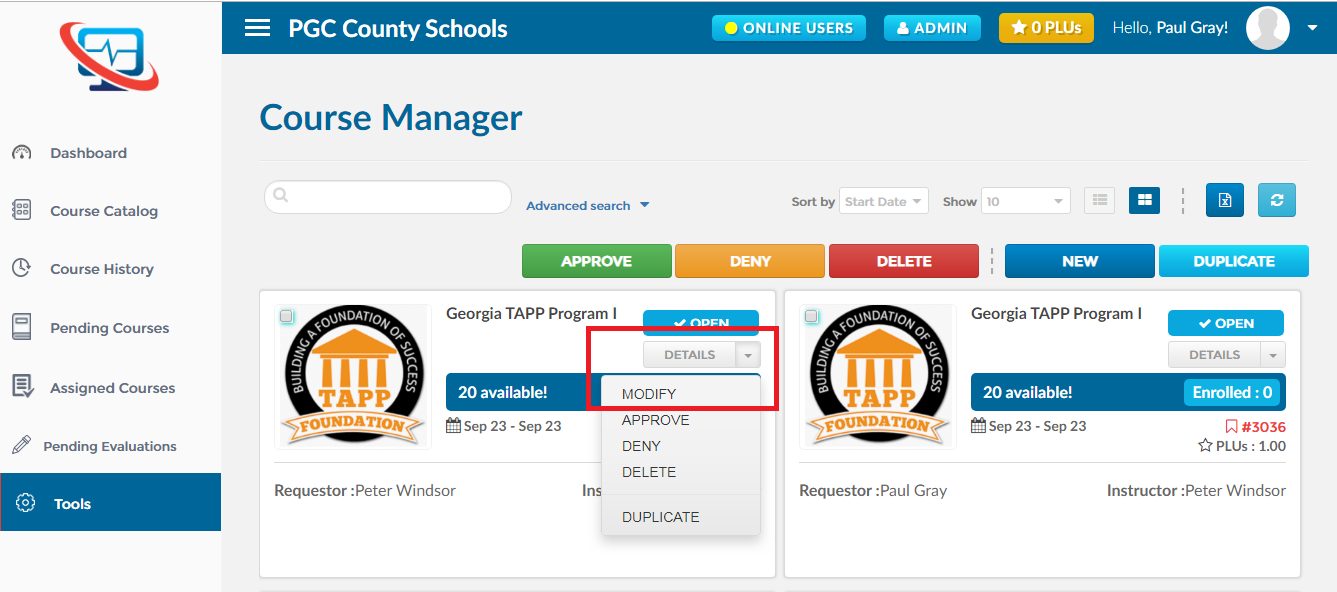
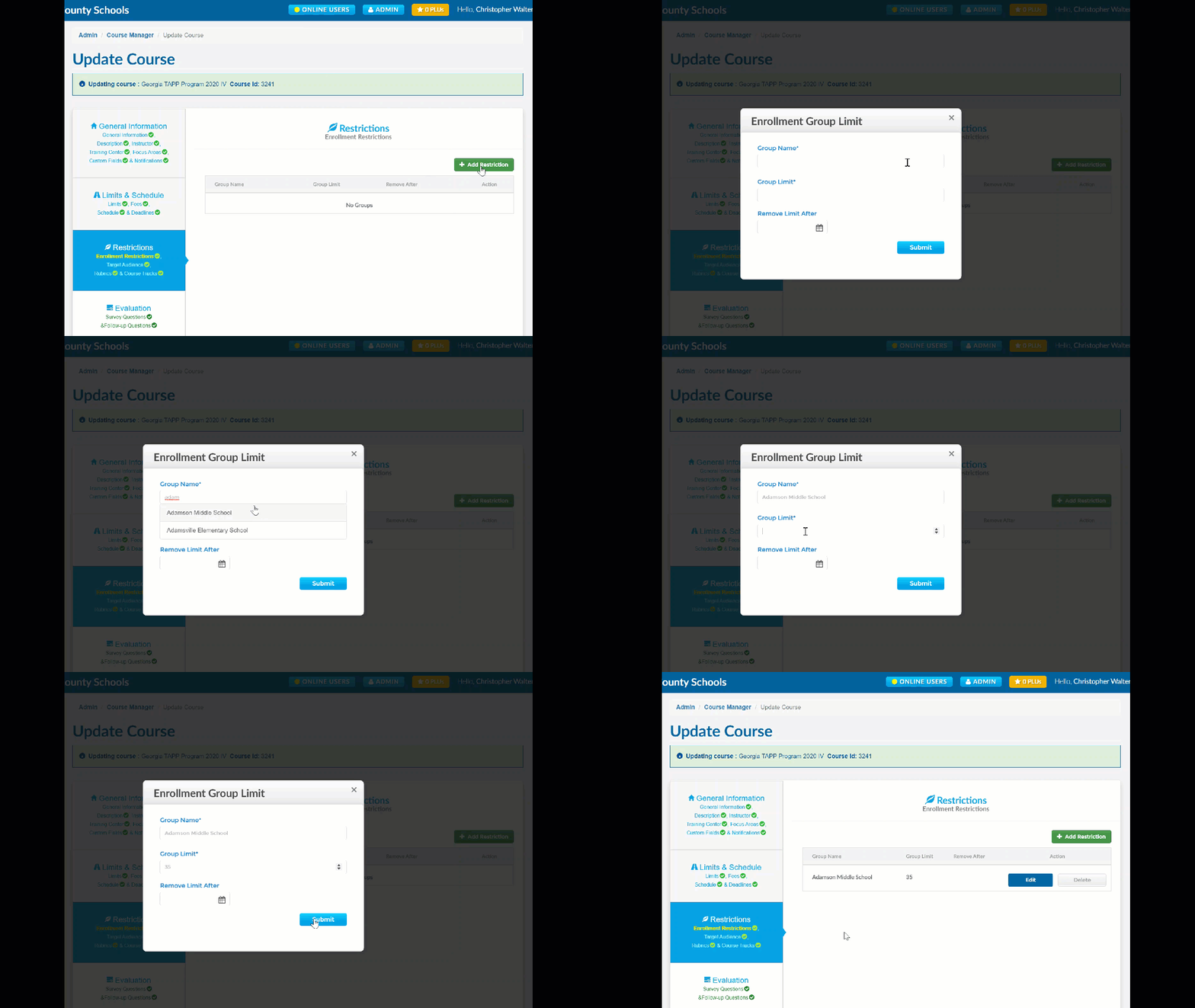
3. Navigate to enrollment restriction
4. Click Add restriction
5. Begin typing the work location you wish to find in the group name field
6. Set the group limit to the max class size to allow the selected work location to use all seats. For multiple work locations allot the appropriate amount of seats until you get to the max class size
Ascriptica allows you to reserve a certain number of seats for a specific course. Seats can only be reserved for a specific period of time.
If a course has reserved seats turned on it will reduce the available seats to registrants until the expiration date has passed.
How to reserve seats for a limited time:
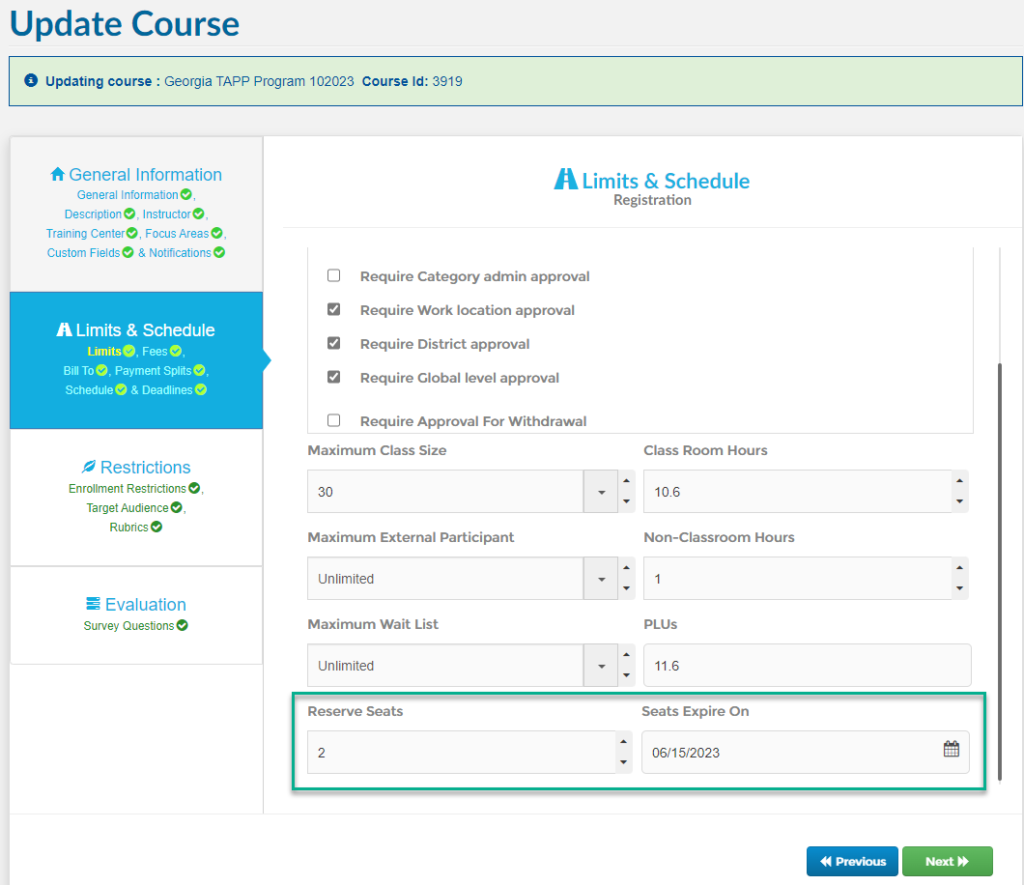
Go to the limits page on any course and set the reserved seat field to the number of seats you would like to reserve. Set the date the reservation should end.
Use Case:
Course ABC has a max size of 30 seats and is being offered to everyone. However, there is a certain group of users (4) that will need some time to register for the course. To support this, 4 seats would be reserved. This will prevent users from filling up the course. When users go to register rather than seeing 30 seats available, they will see 26 seats. This is because 4 seats were reserved. These seats will remain unavailable until the reservation expires. The special users can be registered manually, or the reservation can be removed when the users are in a position to register themselves.