
1. First, log into Ascriptica
2. Click on Tools from the menu on the left.
3. Click ‘Course Enrollment’ as shown below to open the module.
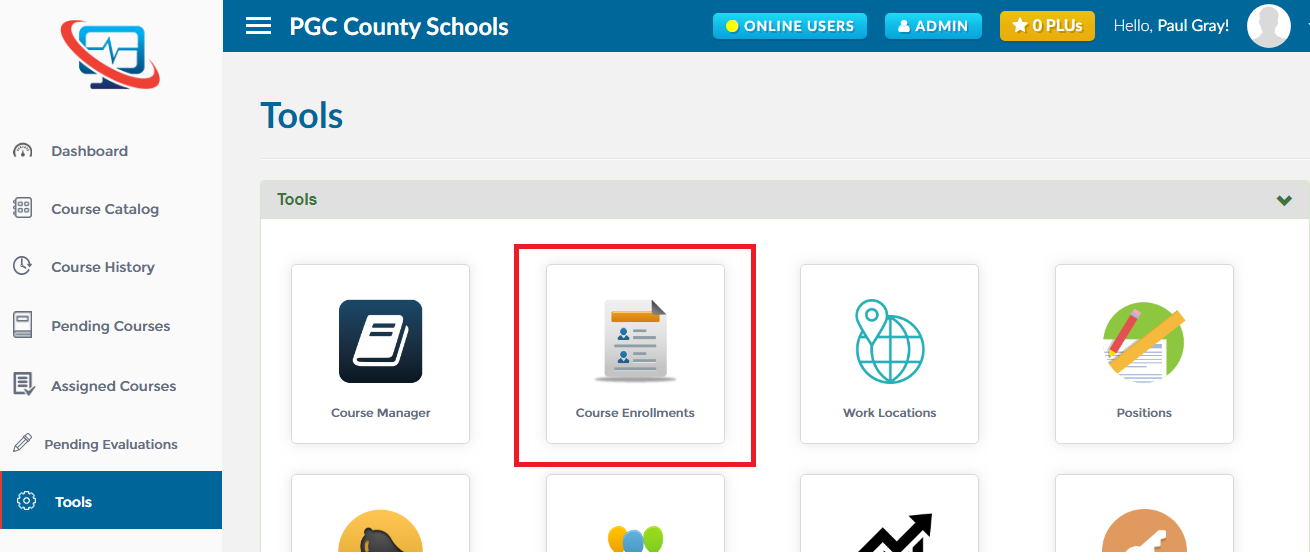
1. First, open the ‘Course Enrollment’. Click here to find out how to open the Course Enrollment.
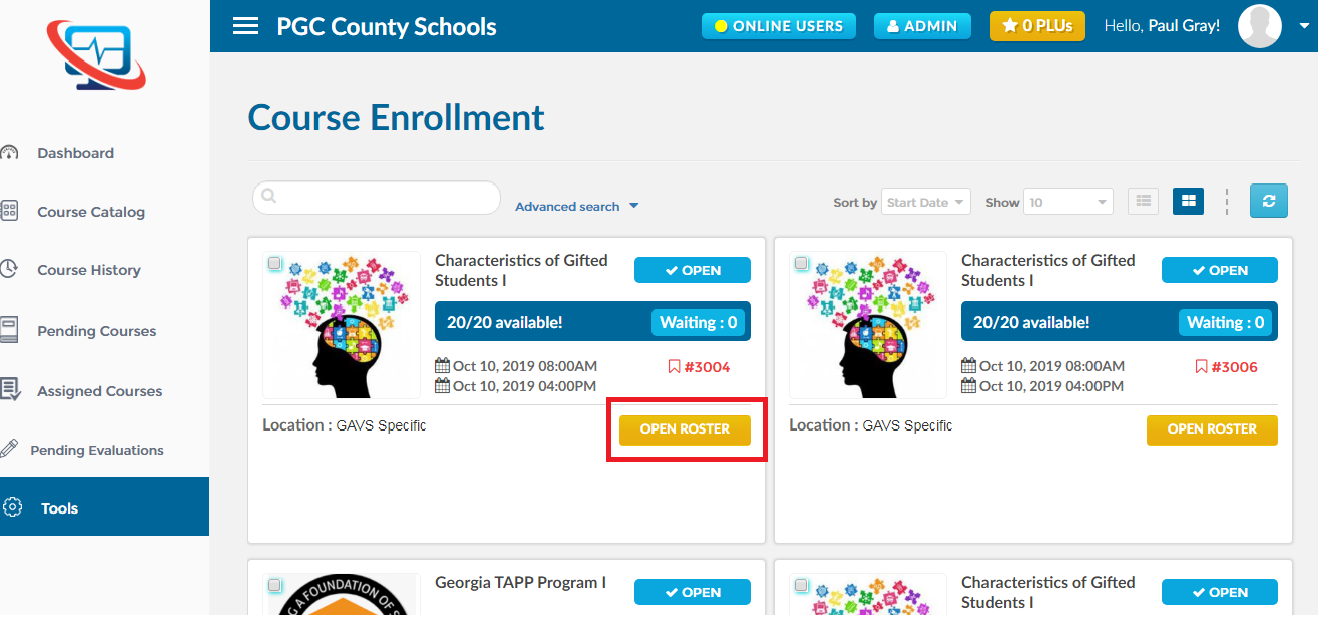
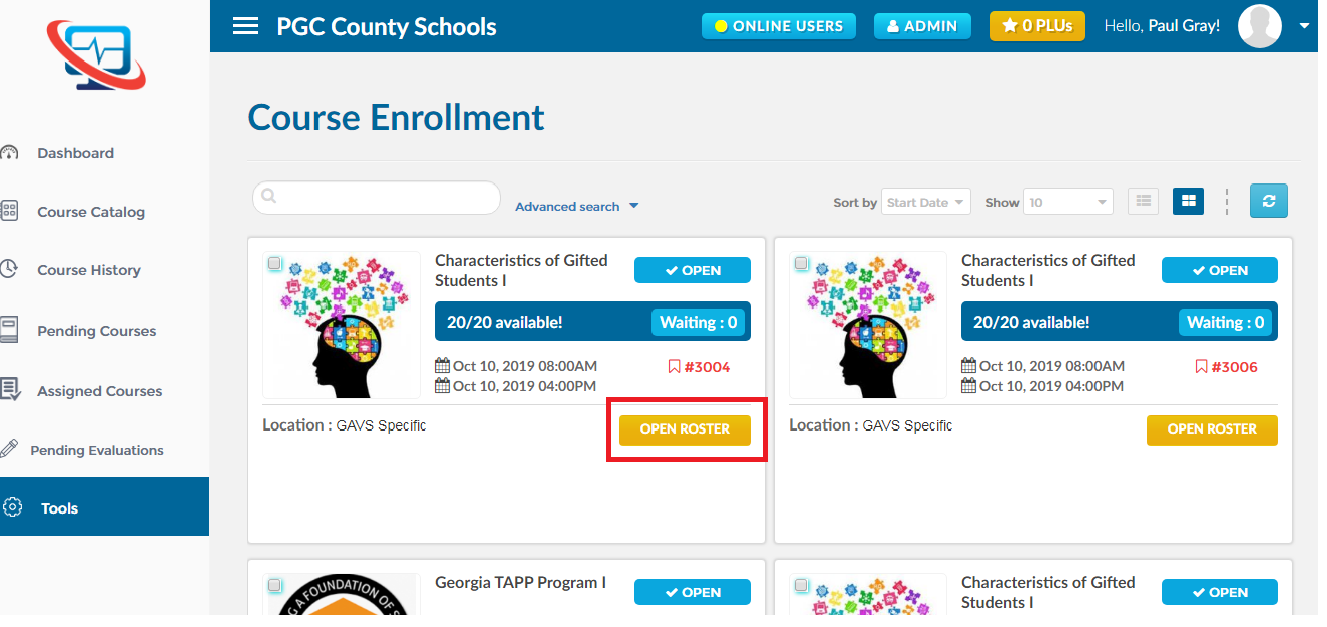
2. Find out the course in which you want to add/register a new participant and click on ‘Open Roster’ as shown below.

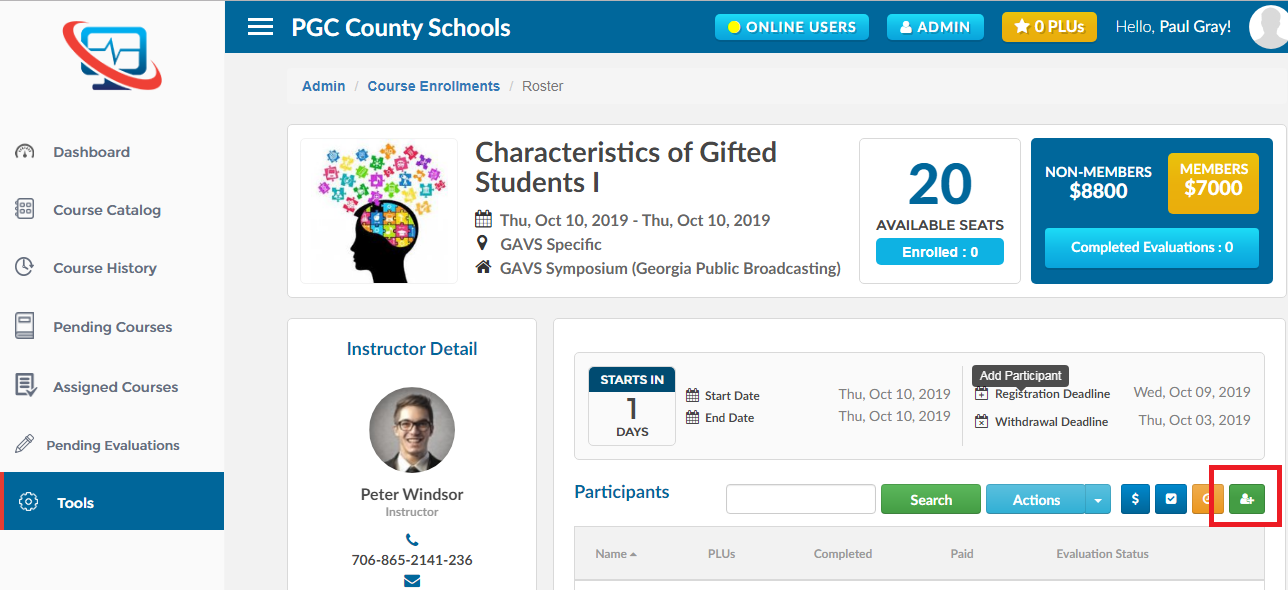
3. Now click on ‘Add Participant’ icon as shown below
1. First, open the ‘Course Enrollment’. Click here to find out how to open the Course Enrollment.
2. Find out the course in which you want to send a message to participants and click on ‘Open Roster’ as shown below.
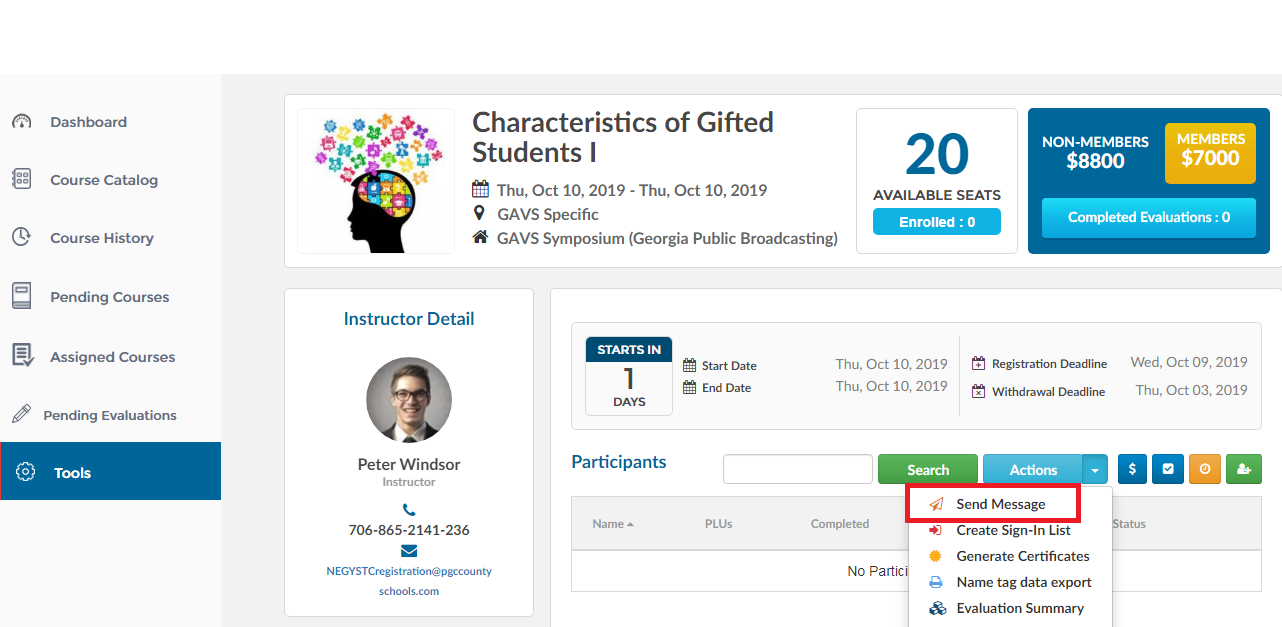
3. Now open the ‘Actions’ dropdown and click on the ‘Send Message’ option as shown below.
1. First, open the ‘Course Enrollment’. Click here to find out how to open the Course Enrollment.
2. Find out the course for which you want to create the sign-in list and click on ‘Open Roster’ as shown below.
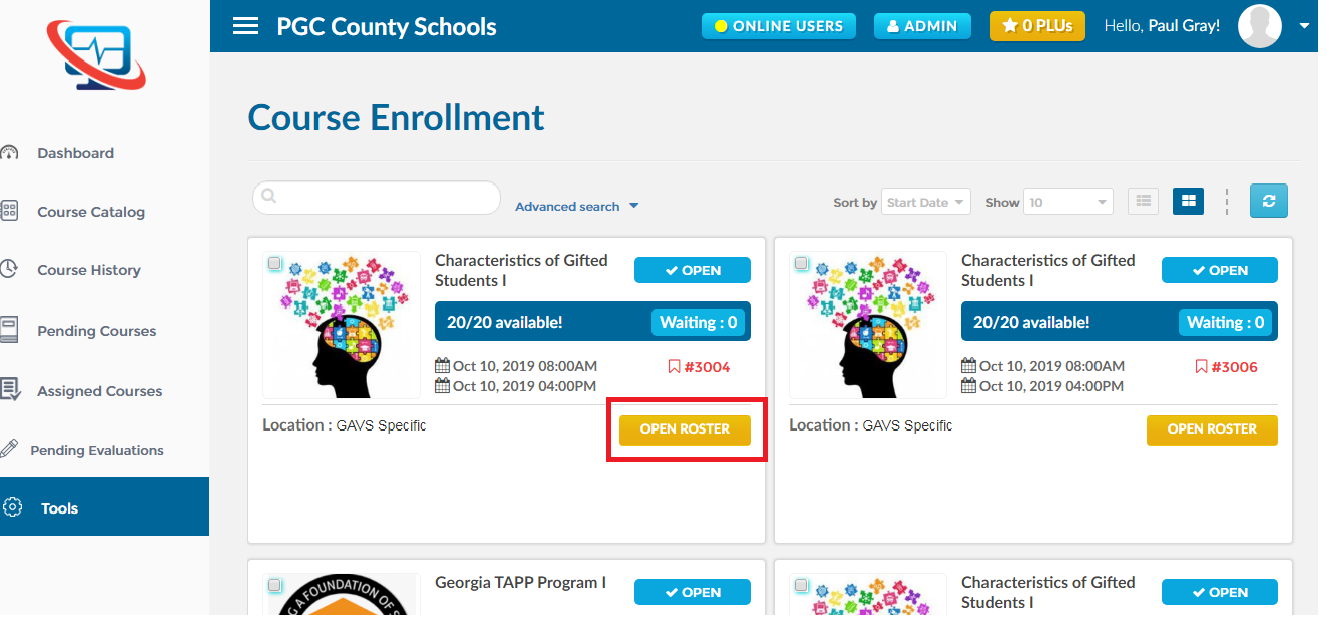
3. Now open the ‘Actions’ dropdown and click on the ‘Create Sign-In List’ option as shown below.

1. First, open the ‘Course Enrollment’. Click here to find out how to open the Course Enrollment.
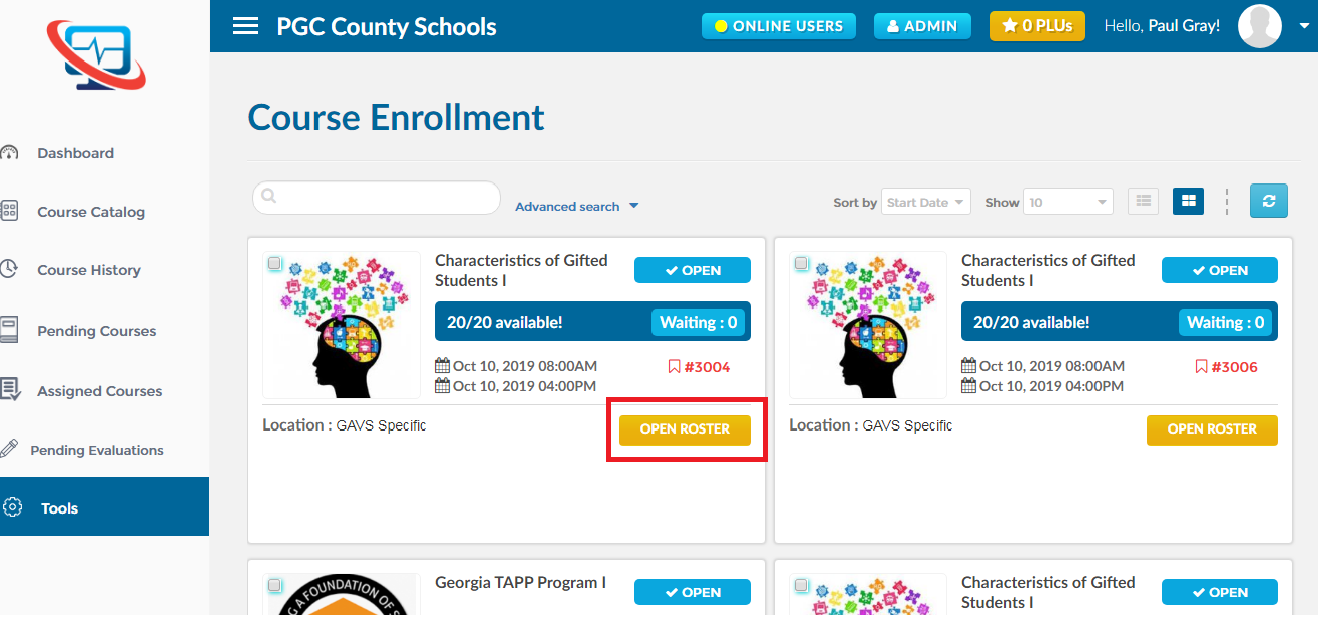
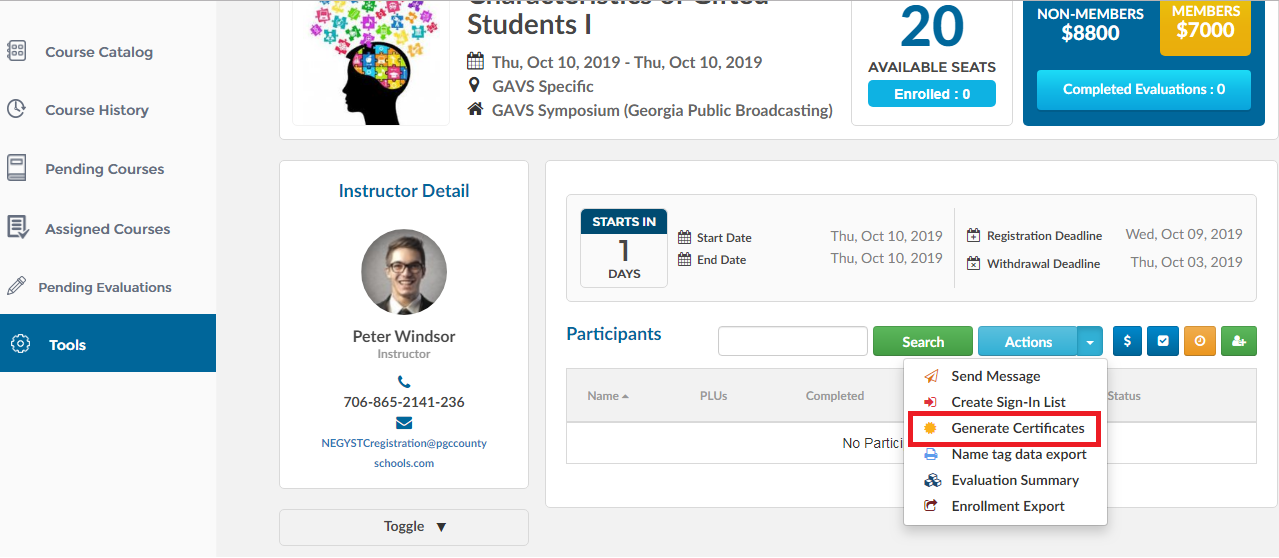
2. Find out the course for which you want to generate certificates and click on ‘Open Roster’ as shown below.
3. Now open the ‘Actions’ dropdown and click on the ‘Generate Certificates’ option as shown below.
1. First, open the ‘Course Enrollment’. Click here to find out how to open the Course Enrollment.
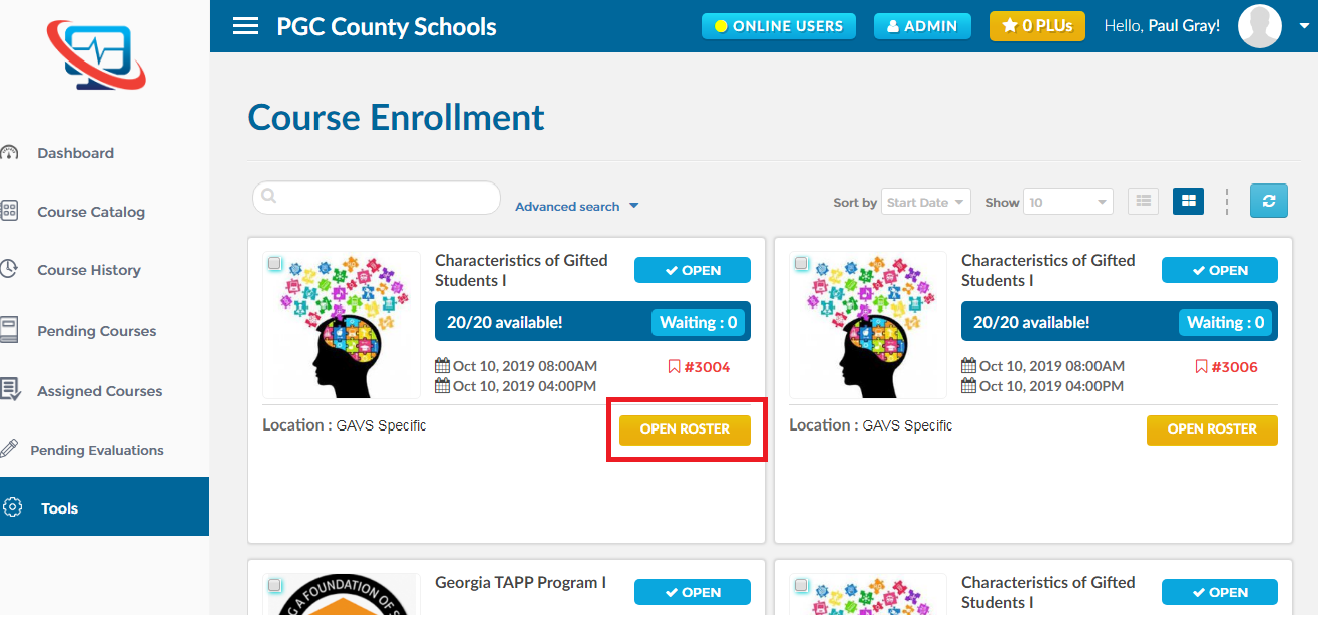
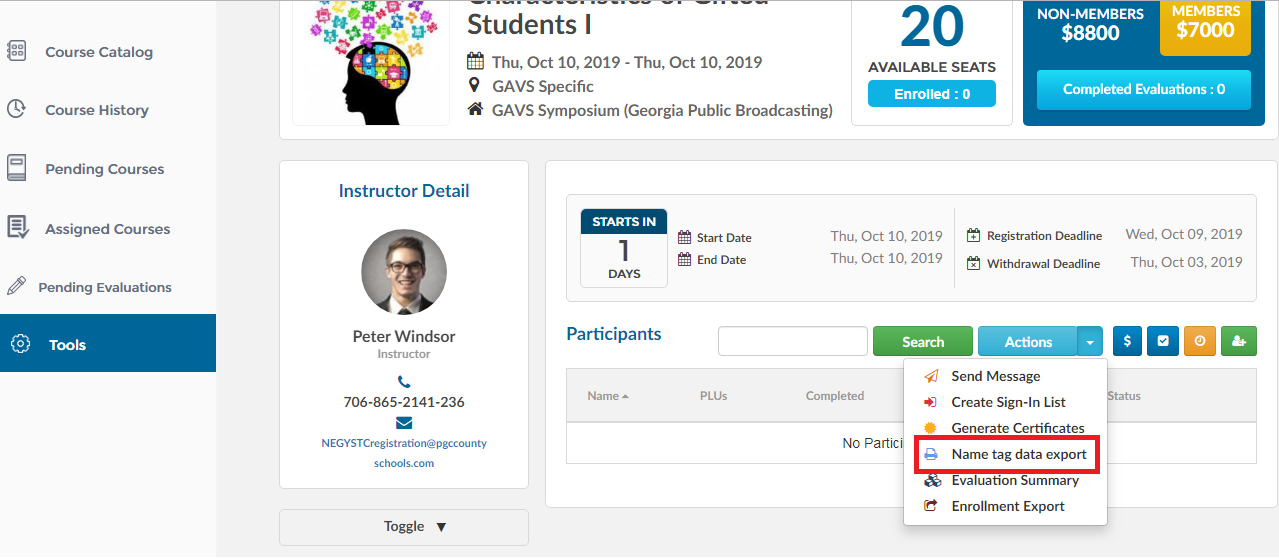
2. Find out the course for which you want to export information to print name tags and click on ‘Open Roster’ as shown below.
3. Now open the ‘Actions’ dropdown and click on the ‘Name tag data export’ option as shown below.
1. First, open the ‘Course Enrollment’. Click here to find out how to open the Course Enrollment.
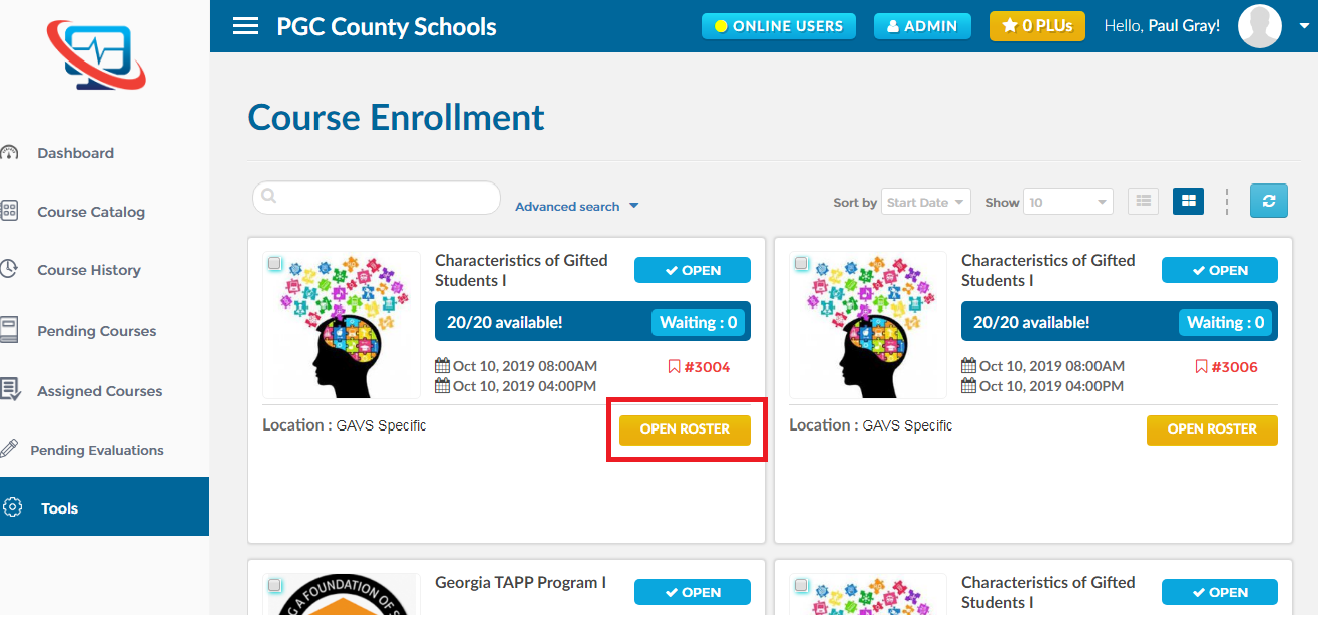
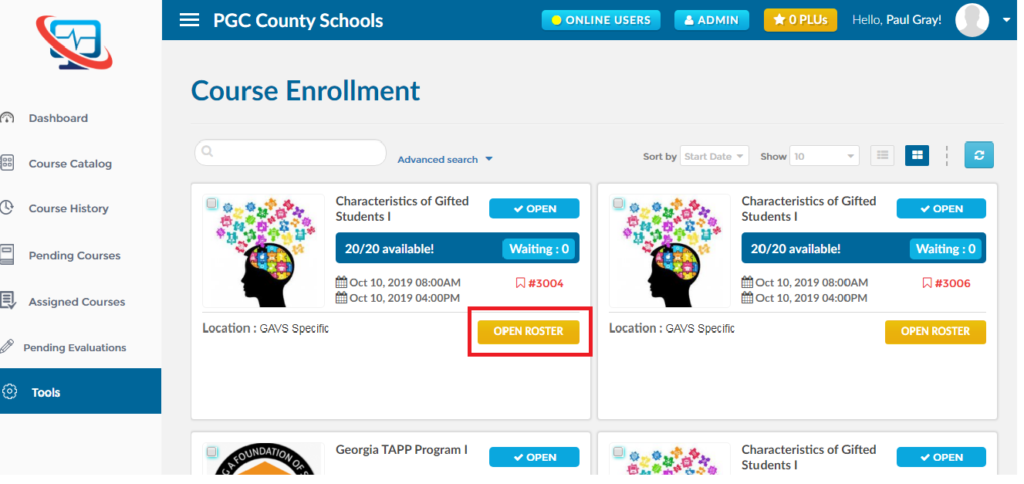
2. Find out the course for which you want to generate and/or export an evaluation summary and click on ‘Open Roster’ as shown below.
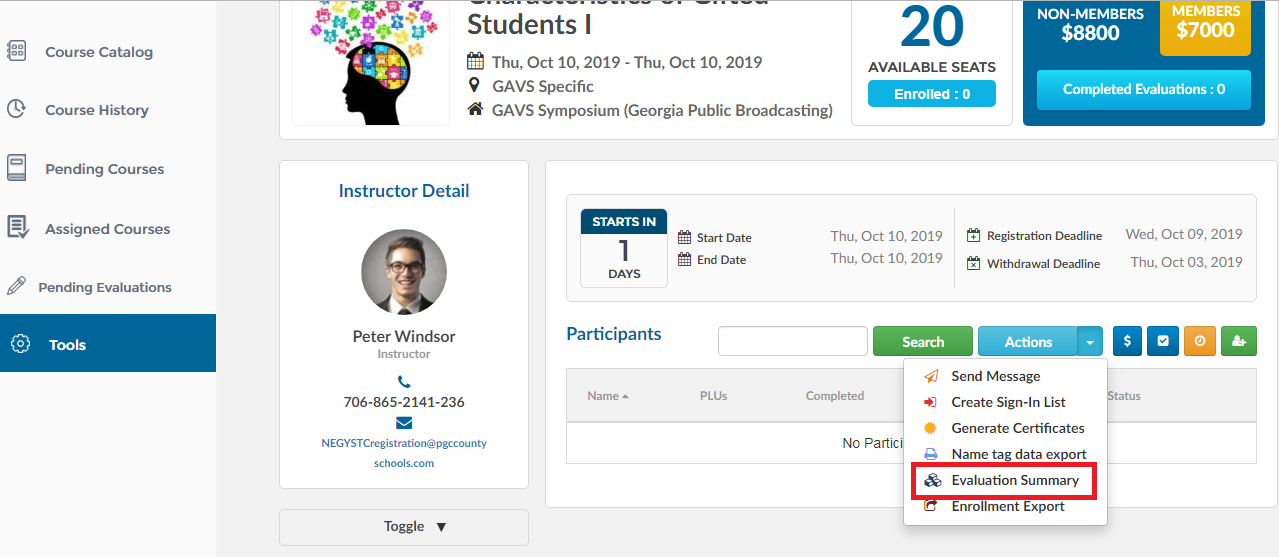
3. Now open the ‘Actions’ dropdown and click on the ‘Evaluation Summary’ option as shown below
Ascriptica’s waitlist feature allows your registrants to reserve space in the course if they registered after the course is full. As registration gets to the max course size, additional registrants are put on a waiting list. This of course assumes that the course was defined to support a wait list. A course can be setup to support unlimited registrants on the waitlist or a fixed number of registrants. As a registrant withdraws or is removed from the roster, Ascriptica will look for the first user on the wait list and promote them to the roster.
How to view the waitlist:
1. First, open the ‘Course Enrollment’. Click here to find out how to open the Course Enrollment.
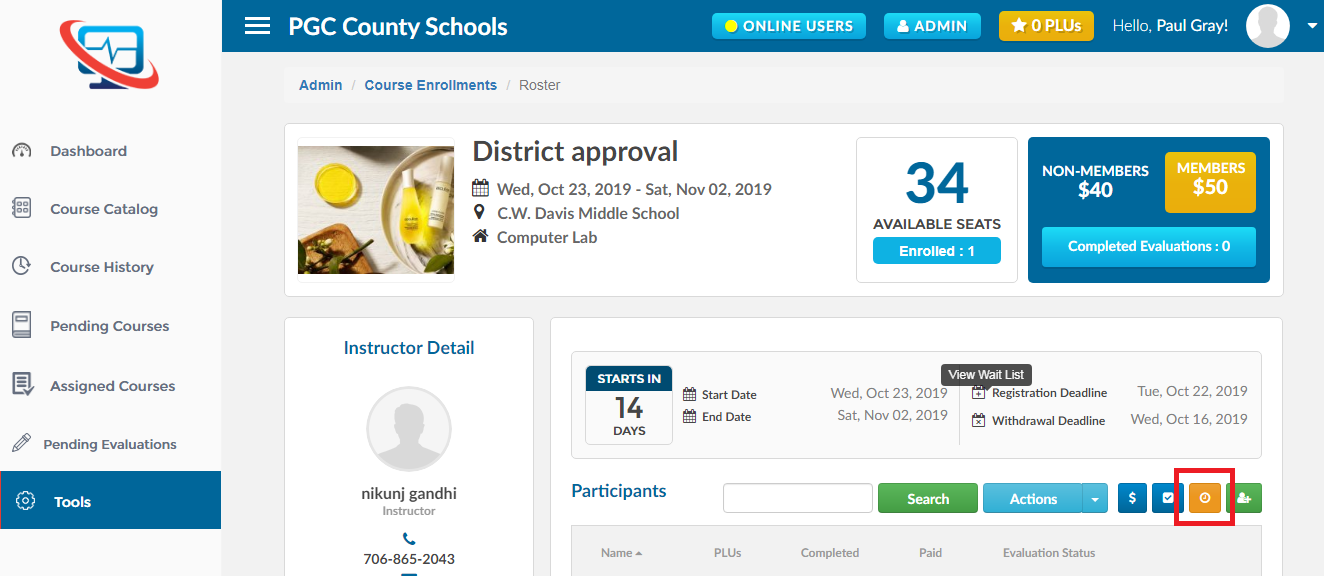
2. Find out the course in which you want to manage the waitlist and click on ‘Open Roster’ as shown below.
3. Now click on the ‘View Wait List’ icon as shown below.
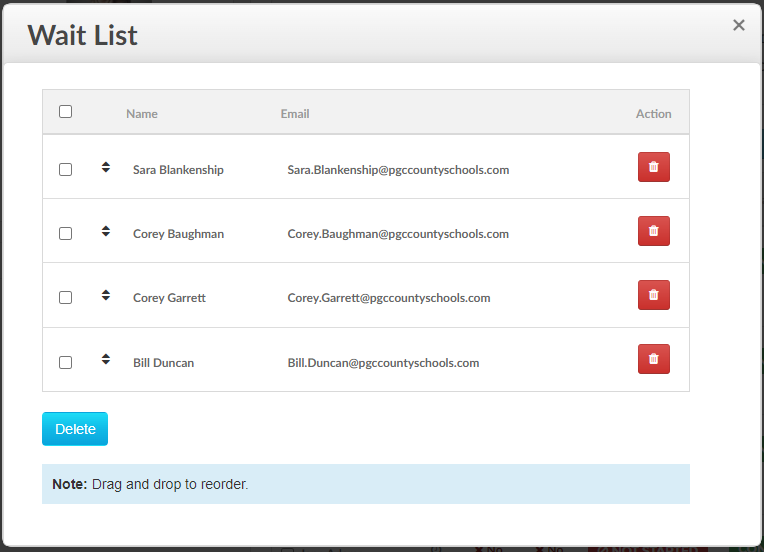
4. View Wait List and/or click the delete(trash icon) to remove someone from the wait list:
Configuration Required on the course to support a waitlist:
The waitlist can be configured at the course level. This means you can determine what courses will support a waitlist or not.
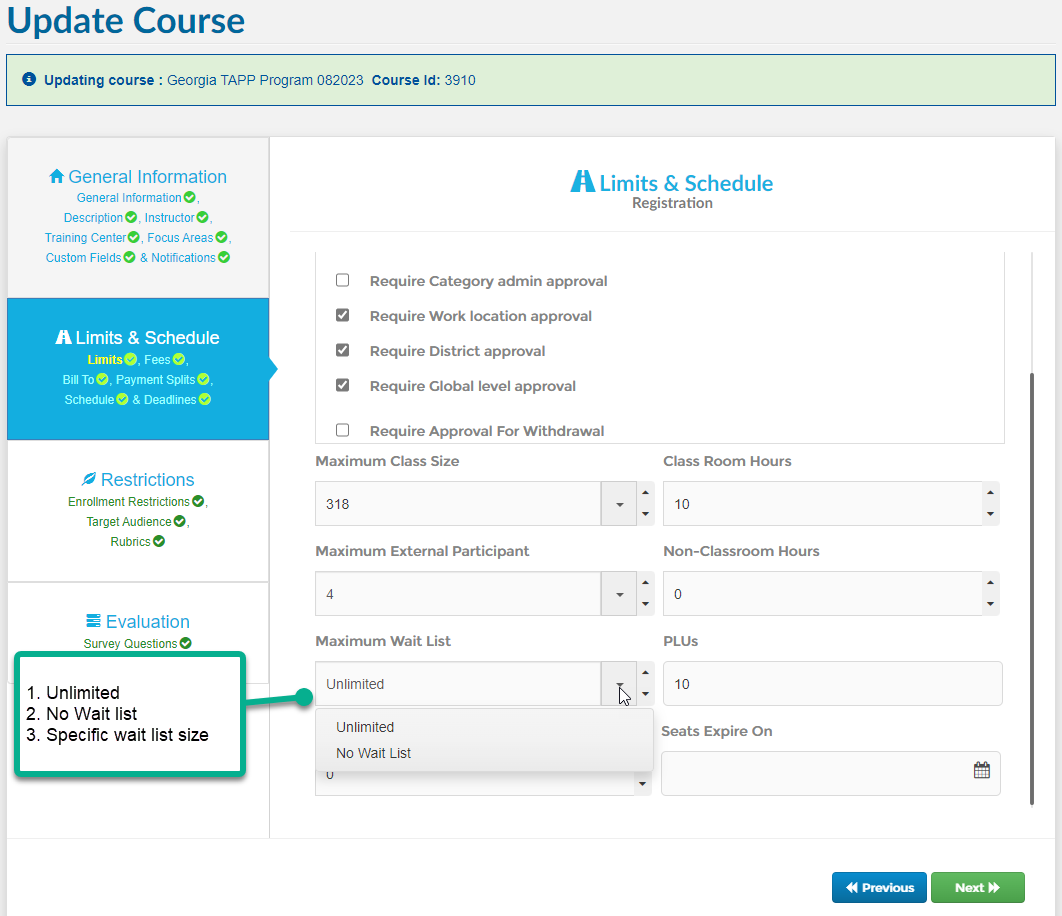
To turn wait list off for a specific course set the waitlist field below to “No Waitlist”
To support unlimited waitlist for a specific course please set the waitlist field below to “Unlimited”
To support a specific waitlist size for a course set the waitlist field below to the desired number.
1. First, open the ‘Course Enrollment’. Click here to find out how to open the Course Enrollment.
2. Find out the course in which you want to mark all participants paid/unpaid and click on ‘Open Roster’ as shown below.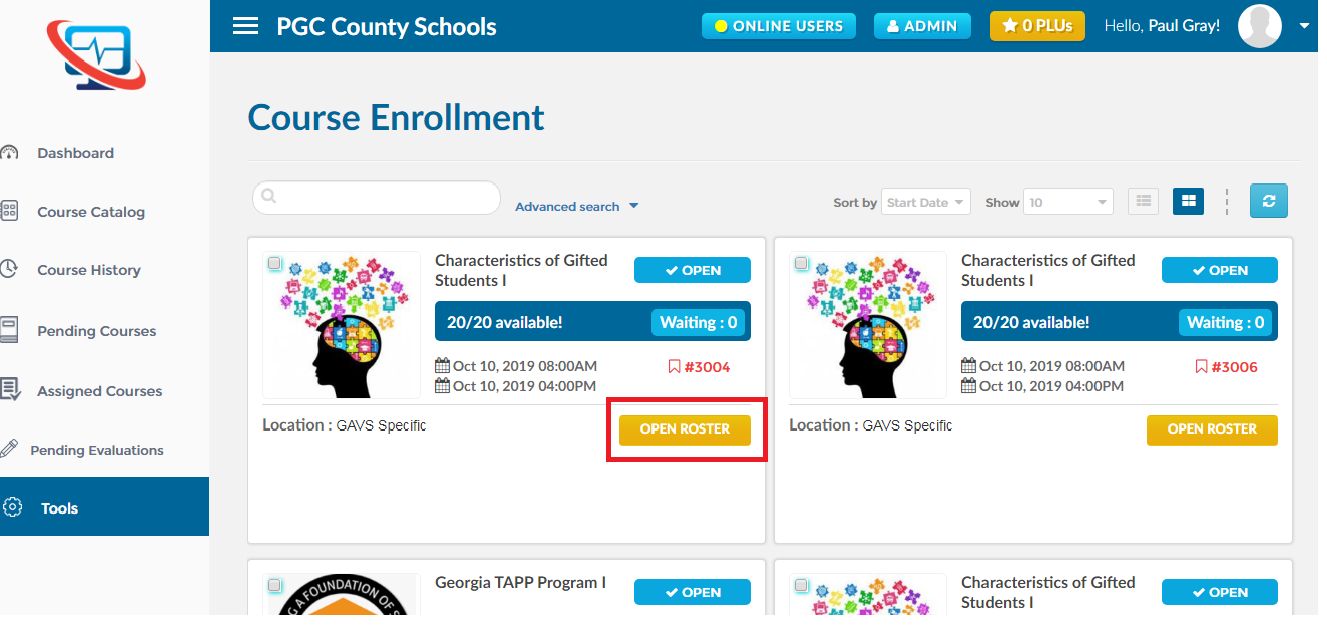 3. Now click on the ‘mark all paid’ icon as shown below.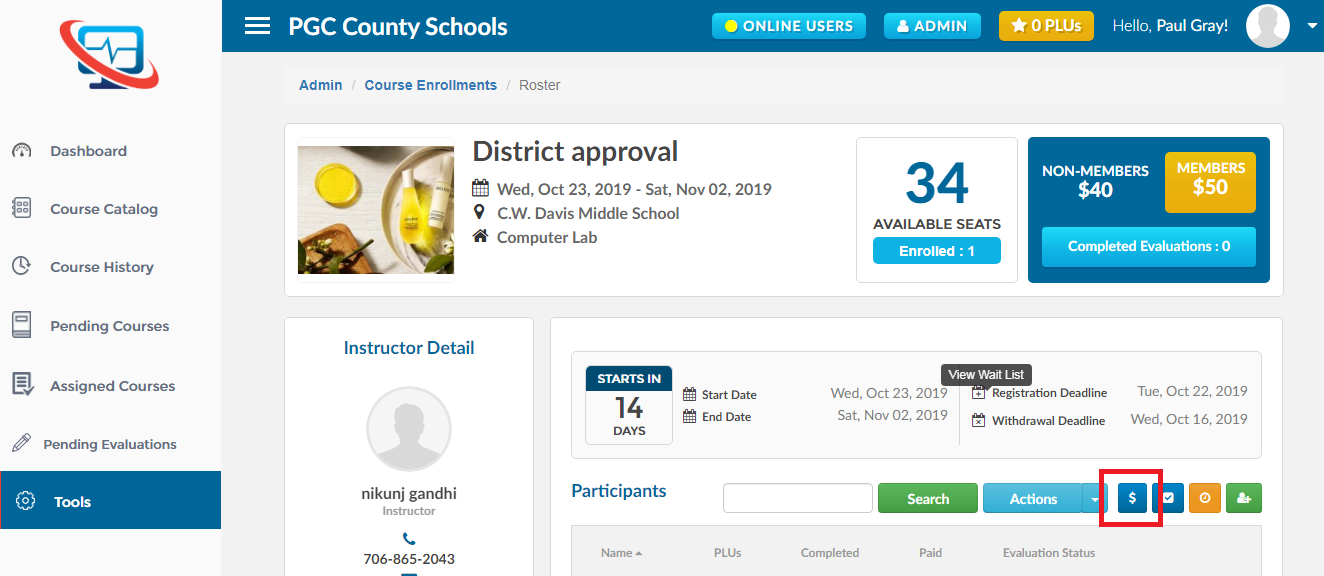
1. First, open the ‘Course Enrollment’. Click here to find out how to open the Course Enrollment.
2. Find out the course in which you want to mark all participants complete/incomplete and click on ‘Open Roster’ as shown below.
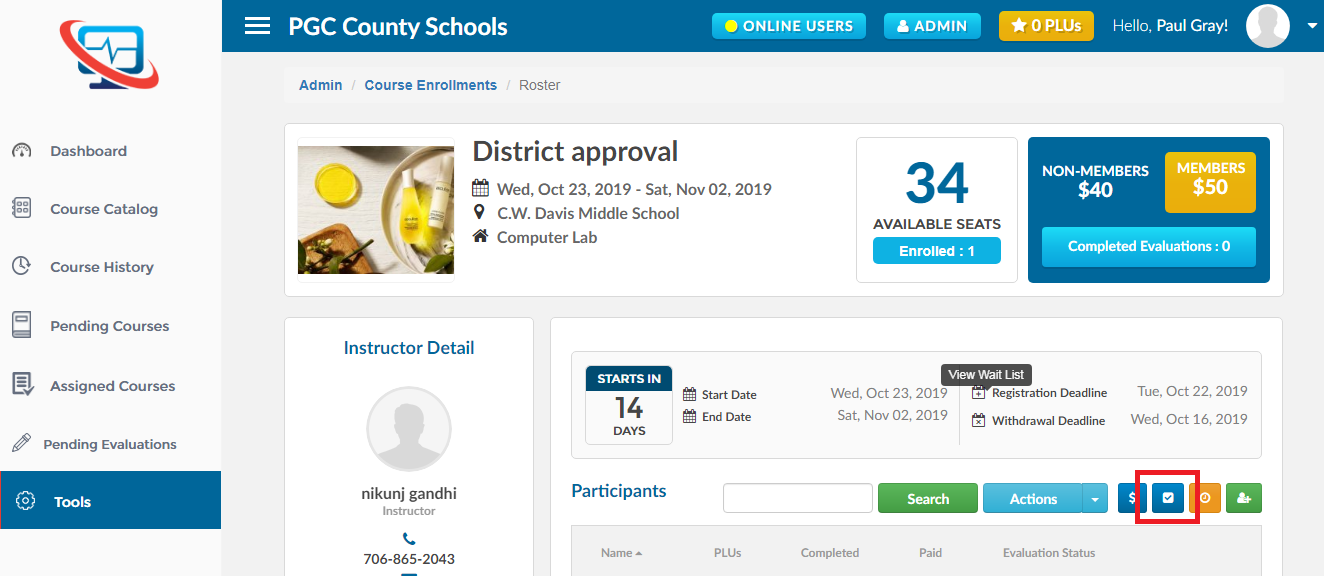
3. Now click on the ‘mark all complete/incomplete’ icon as shown below.
1. First, open the ‘Course Enrollment’. Click here to find out how to open the Course Enrollment.
2. Find the course with the participant you would like to extend/re-route.
3. Click on the evaluation status for the participant you would like to extend/re-route.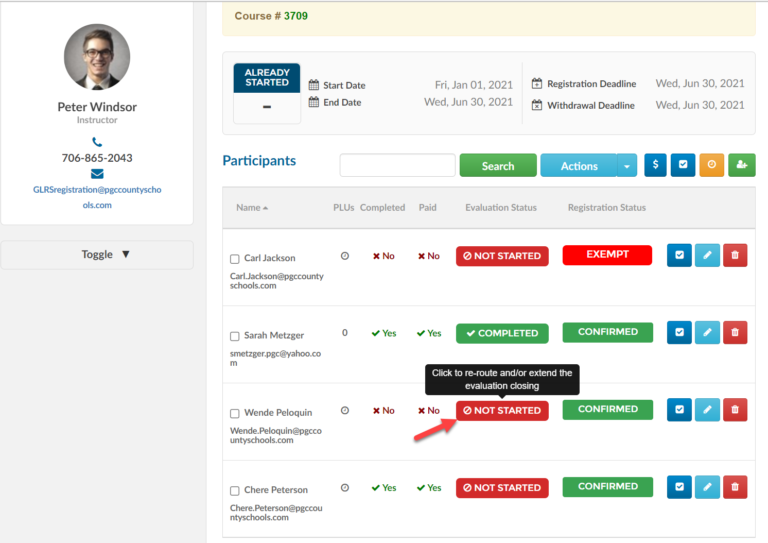
4. Fill in the details to re-route and/or extend the evaluation to the desired email and click submit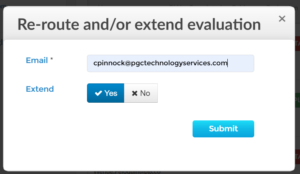
Invoice consolidation allows you to send a single invoice to a district containing all registrants who registered for a specific course from said district. The Invoice number is free form to allow you to add the invoice number from your accounting system. In the future we may allow you to auto-generate the invoice number.
1. First, open the ‘Course Enrollment’. Click here to find out how to open the Course Enrollment.
2. Find out the course for which you want to generate certificates and click on ‘Open Roster’ as shown below.
3. Now open the ‘Actions’ dropdown and click on the ‘Consolidate Invoice’ option as shown below.
4. Select the district you would like to send a single invoice.
5. Select one or more work locations / school.
6. Select the records you want to include in the consolidated list.
7. You may preview the consolidated invoice or email to one or more email addresses.