Overview

If you’re a District Approver or a Work Location Approver, Ascriptica gives you more than just the ability to approve or decline registration requests. This guide covers everything available to you from the Registration Approvals area, including viewing enrollments, filtering by location, exporting records, and printing certificates and transcripts.

How do I approve or decline registration requests?

  1. First, log into Ascriptica
  2. Click on ‘Tools’ from the menu on the left.
  3. Registration Approvals.
  4. Select the District Approval tab if you approve for an entire district, or the Work Location Approval tab if you approve for an individual school or site.
  5. Review pending requests and approve or decline each one. The page shows running totals for Total Requests, Pending Requests, Approved Requests, and Declined Requests so you can see status at a glance.
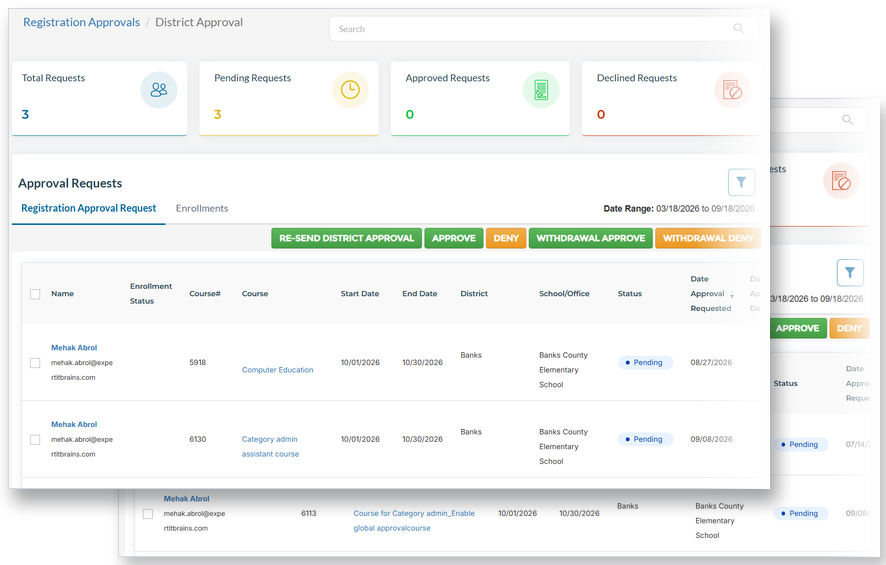
District Approval and Work Location Approval screens

How do I view enrollment records for my district or work location?

Approving requests is only part of what this area does. There’s a second tab, Enrollments, that lets you see the actual enrollment and completion status for the registrants you oversee.

  1. First, log into Ascriptica
  2. Click on ‘Tools’ from the menu on the left.
  3. Registration Approvals.
  4. Select the District Approval tab if you approve for an entire district, or the Work Location Approval tab if you approve for an individual school or site.
  5. Click the Enrollments tab.
  6. You’ll see each registrant’s enrollment status
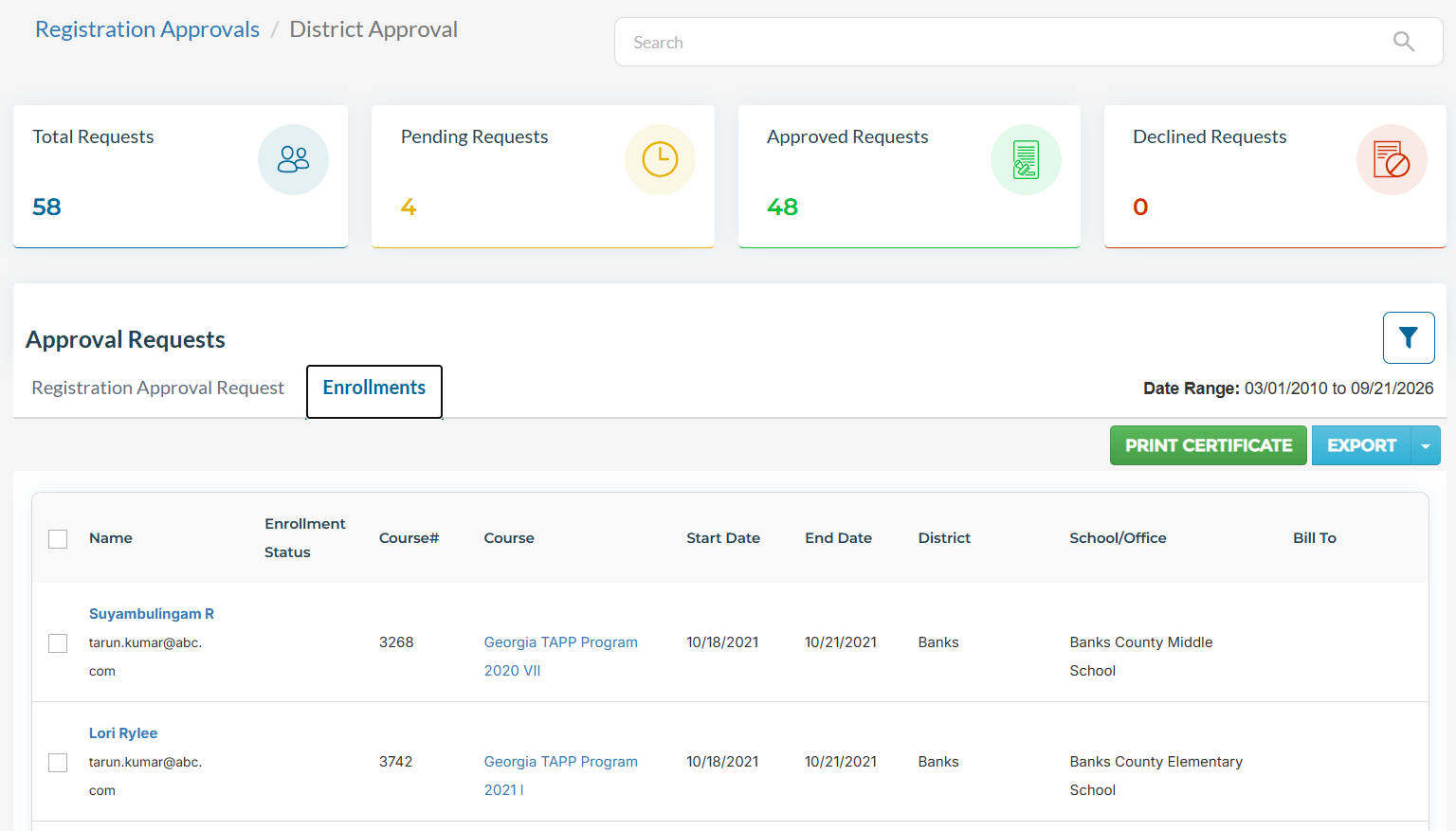
District Approval enrollments table showing registrant enrollment status

How do I filter enrollments by location?

The Enrollments tab includes filters so you’re not scrolling through every record:

  1. First, log into Ascriptica
  2. Click on ‘Tools’ from the menu on the left.
  3. Registration Approvals. 
  4. Select the District Approval tab if you approve for an entire district, or the Work Location Approval tab if you approve for an individual school or site.
  5. Click the Enrollments tab.
  6. Click on the filter icon
  7. District Approvers can filter to a specific school or work location within the district to see how that location is doing.  
  8. Work Location Approvers see enrollments specific to their own school automatically, and can narrow further by course or date range.  

How do I export enrollment records?

  1. From the Enrollments tab, apply any filters you want (location, date range, course).
  2. Click Export to download the filtered enrollment records. 

Note: Exports respect whatever filters are currently applied, so filter first if you only need a subset of records.

How do I print certificates or transcripts?

  1. From the Enrollments tab
  2. Select the registrant.
  3. Use the Print Certificate option to generate a certificate or transcript for that enrollment.