How to Integrate Ascriptica with D2L
Ascriptica D2L integration allows you to connect to D2L to automate the registration of users into associated D2L courses. The current connection supports the following activities:
- When a participant/registrant registers for a course in Ascriptica they are automatically registered in the associated D2L course. This saves the end user from having to do multiple registrations.
- When a participant/registrant withdraws from a course in Ascriptica they are automatically withdrawn from the associated D2L course. This saves the end user from having to remember to withdraw in both places.
In order to connect Ascriptica to D2L you will need to register Ascriptica and collect the following D2L information:
- Domain
- Client ID
- Client Secret
- API Version
- Organization ID
- Oauth Scope
- User Role ID
Once you have the information above, you will connect Ascriptica in the final step to complete the setup.
How to register Ascriptica with D2L
- Login to D2L as an administrator
- Click on “Admin Tools” then “Manage Extensibility”
- Click on “OAuth 2.0” tab
- Click on “Register an app”
- Set Application Name to “Ascriptica API”
- Redirect URI should be set to your Ascriptica instance (https://yourinstance.ascriptica.com/admin/d2lsettingscallback). Example: https://pgccountyschools.ascriptica.com/admin/d2lsettingscallback
- Scope should be set as follows: content:*:* core:*:* data:*:* enrollment:*:* users:*:*
- Access Token Lifetime (seconds), Please keep default – 3600
- Description may be set to “Integration with Ascriptica. “
- Toggle on “Prompt for user consent”, Enable refresh tokens, Accept the non-commercial developer agreement.
- Click Register
- Sample Completed form:
Connect Ascriptica to D2L
- Login to Ascriptica as an admin
- Navigate to Tools then Settings
- Click on Course Settings
- Toggle on D2L Settings
- Copy and paste the requested information in the fields below with the information you stored in a safe place above. Sample form below
- Click save
How to connect Ascriptica Course with a D2L Course
- Login to D2L as an administrator
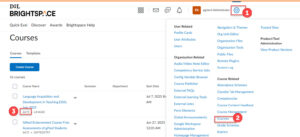
- Click on the gear icon
- Click on courses
- In the courses list, look for the course you would like to connect. The course number will be displayed below the course name as shown below

D2L GetCourseNumber