1. First, log into Ascriptica
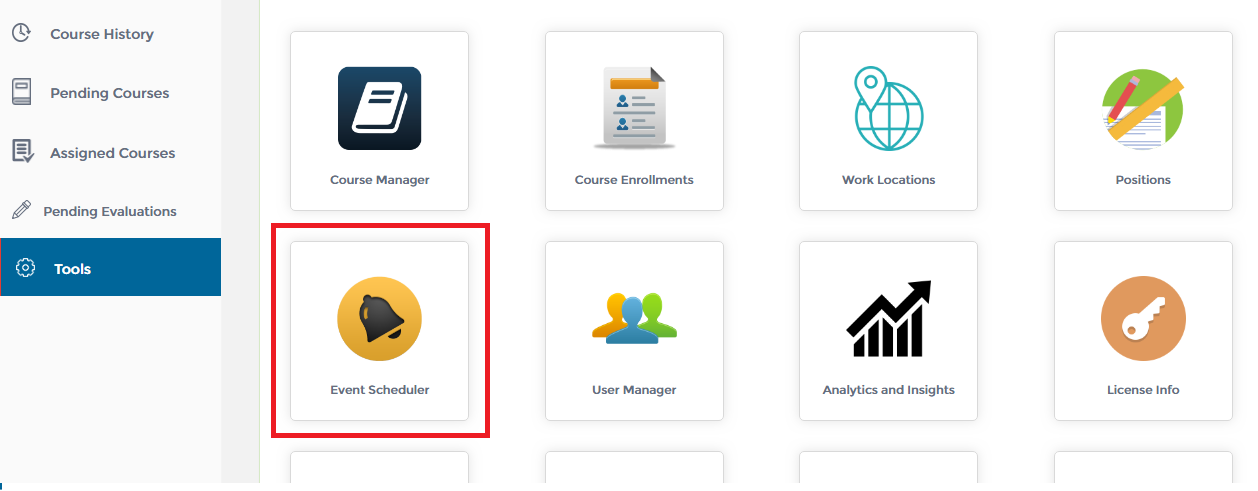
2. Click on ‘Tools’ from the menu on the left.
3. Click on ‘Event Scheduler’ as shown below to open the module.
1. First, open the ‘Event Scheduler’. Click here to find out how to open the ‘Event Scheduler’ module.
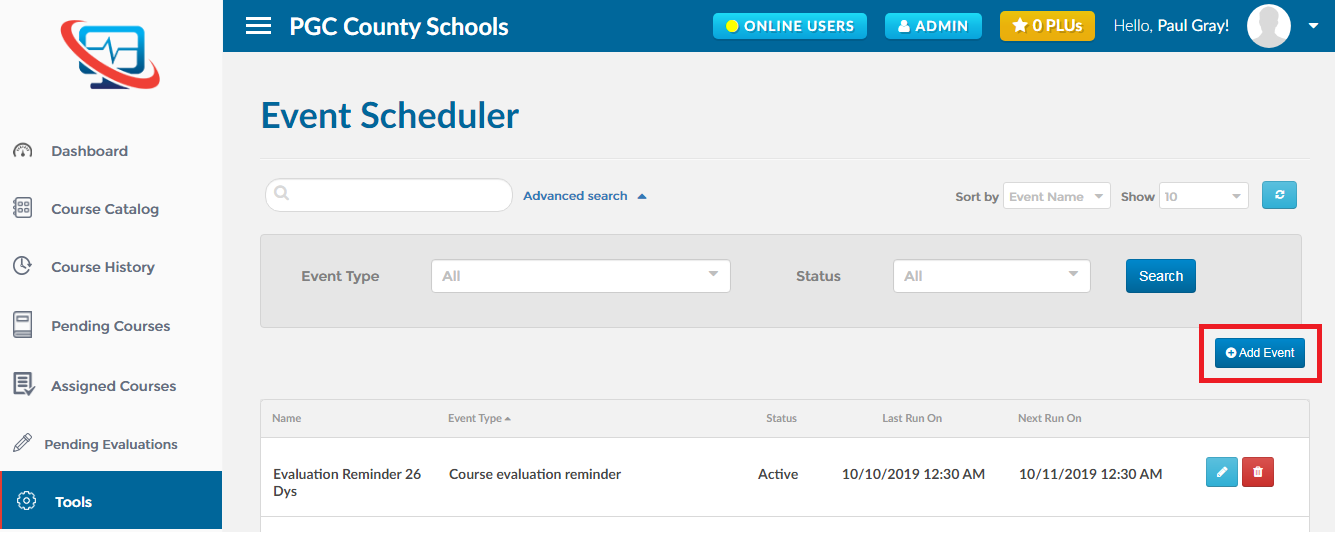
2. Click on the ‘Add Event’ button as shown below.
1. First, open the ‘Event Scheduler’. Click here to find out how to open the ‘Event Scheduler’ module.
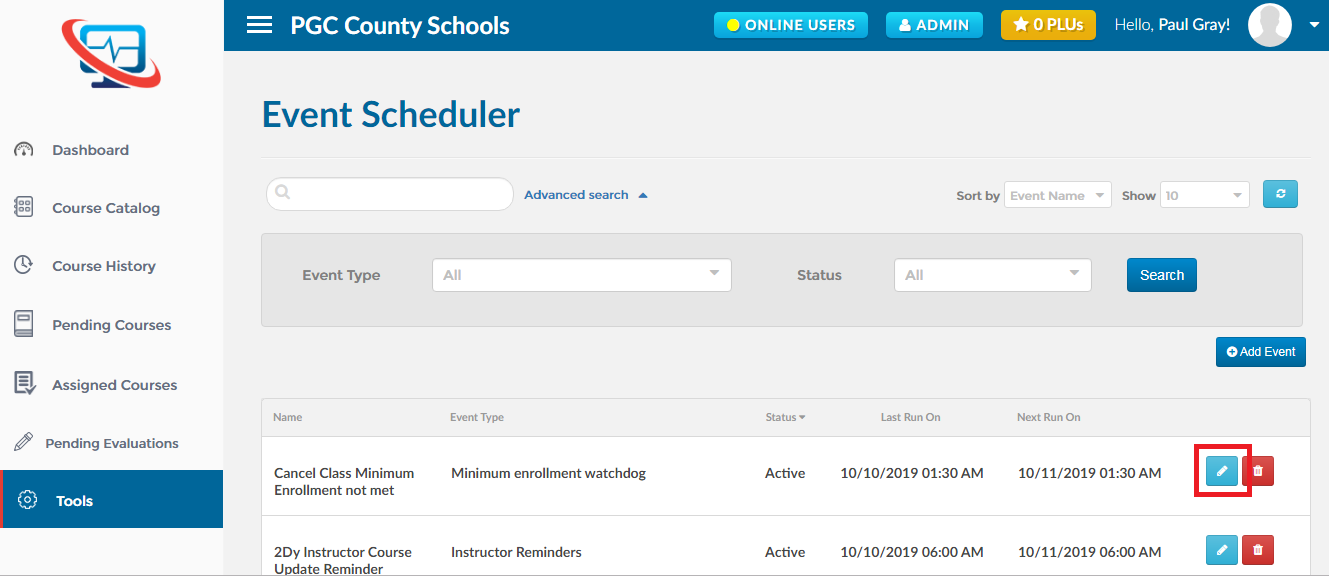
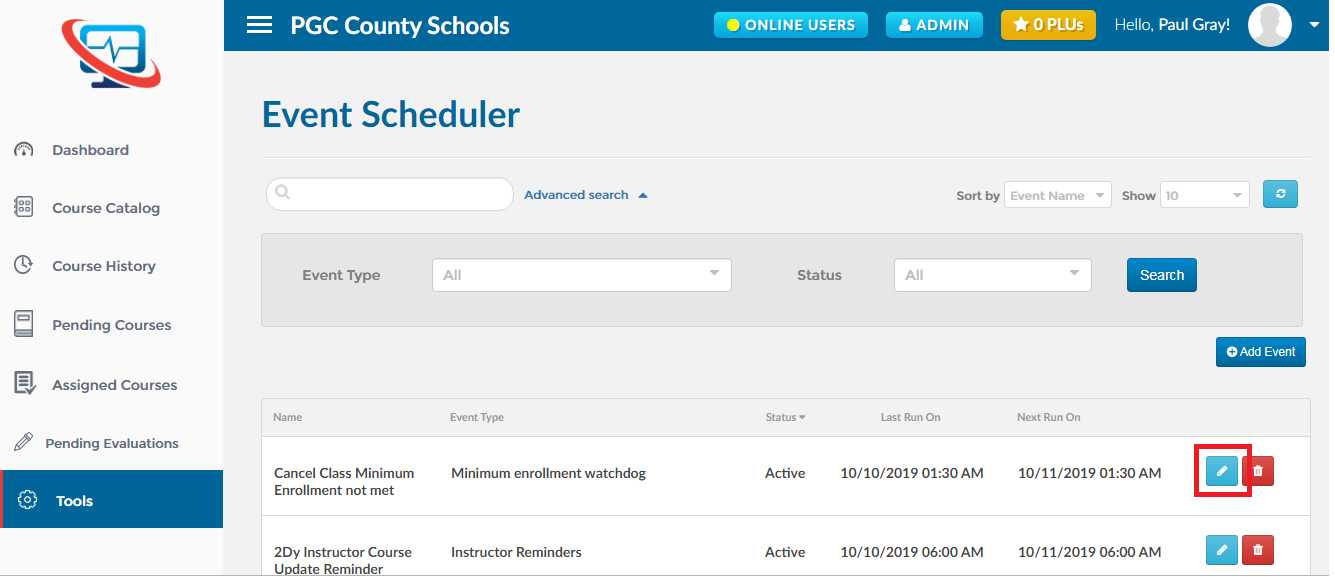
2. Find out the event in which you want to make changes and click on the ‘Edit’ button as shown below.
1. First, open the ‘Event Scheduler’.Click here to find out how to open the ‘Event Scheduler’ module.
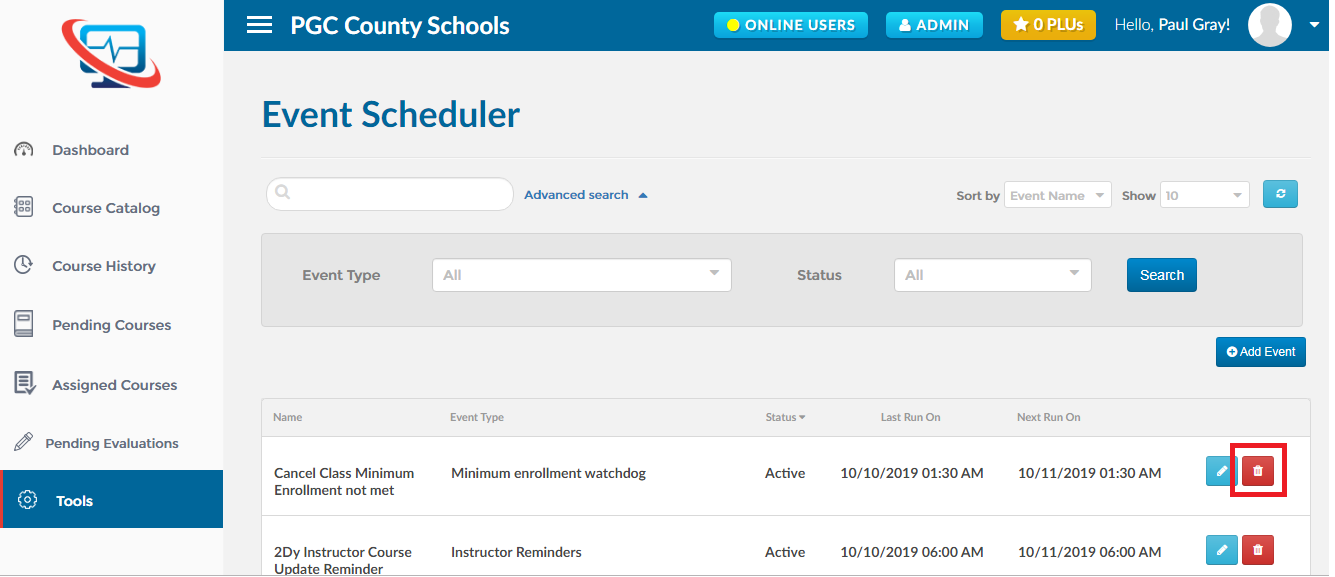
2. Find out the event you want to delete and click on the ‘Delete’ button as shown below.
1. First, open the ‘Event Scheduler’. Click here to find out how to open the ‘Event Scheduler’ module.
2. Find out the event you are interested in changing status and click on the ‘Edit’ button as shown below.
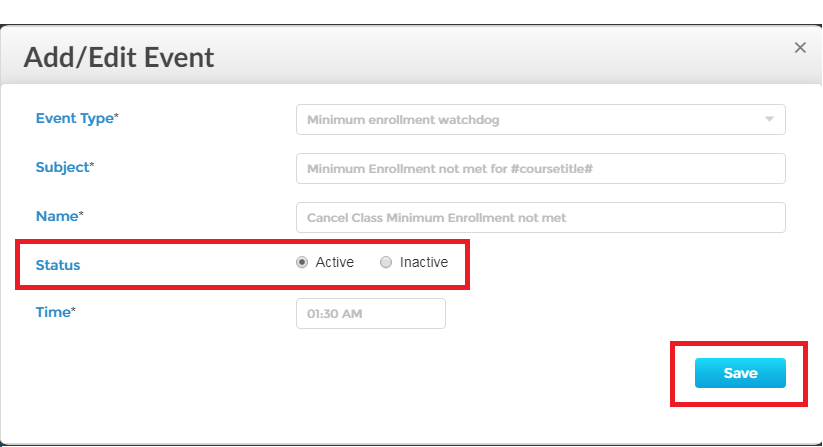
3. It will take you to the ‘Add/Edit Event’ popup. Just change the event status here and click on the ‘Save’ button as shown below.